Why does my WiFi say connected but no internet? Your device has joined the WiFi network, but something between it and the internet is failing. That could be the device, the router, the modem or your provider. Test another device first, check your provider's outage page and the cables, then power cycle the modem and router, modem first.
Your phone shows full WiFi bars. The router lights are on. But nothing loads.
WiFi connected but no internet means your device has joined the local WiFi network, but that does not guarantee it can reach the internet. The failure may be on one device, inside the router, between the router and modem, or at your internet provider. Start by testing another device, then work outward through the connection.
This guide shows you how to narrow it down. Then it walks through 8 fixes in order, from the least disruptive to the most.
What "Connected Without Internet" Means
Your phone or computer shows this message when it has joined your WiFi network but cannot load anything from the internet. The wording depends on the device:
- Android: “Connected without internet” or “Connected, no internet”. Wording varies by phone maker
- iPhone and iPad: “No Internet Connection” under the network name
- Windows: “No internet, secured” or “No internet access”
All of these mean the same thing. Your device has a working link to the WiFi network. Something between your device and the internet is not working.
Is It Your Device, Your Router or Your Internet Provider?
Narrow it down first. It saves you from resetting equipment that was never the problem.

| What you see | Likely problem | Start with |
|---|---|---|
| One device is offline, the others work | That device or its settings | Fix 1, Fix 5, Fix 6 |
| A browser sign-in page appears | WiFi that needs a login, such as hotel, school or apartment WiFi | Sign in on that page |
| Some apps work, but websites will not load | DNS or a browser setting, proxy or extension | Fix 6 |
| Ethernet works, WiFi does not | The wireless connection | Fix 1, Fix 5 |
| Every device is offline, the modem or ONT online light is off, red or showing an error | Modem, ONT or provider | Fix 2, Fix 3 |
| Every device is offline, the online light looks normal and no outage is reported | Router or modem | Fix 3, Fix 4 |
| Nothing above has helped | Router firmware or settings, failed equipment, the incoming line, your account or the provider | Fix 7. Contact your provider or router maker before Fix 8 |
A note on gateways and fiber. Many providers supply a gateway, which is a modem and router in one box. Fiber service usually has an ONT, a small box that converts the fiber signal. Check its status lights the same way you would check modem lights.
8 Fixes for WiFi That Is Connected but Has No Internet
Work through these in order. Each fix is slightly more disruptive than the last. Stop when the internet comes back.
Fix 1. Restart the Device and Test Another One
First, check whether other phones, laptops or TVs can get online.
If only one device is offline, restart it. Turn it off, wait 10 seconds and turn it back on. Then run these quick checks:
- Disconnect any VPN for a moment and test again
- Open a browser. A sign-in page may be waiting, as on hotel, school or apartment WiFi
- Make sure the date and time are set automatically
- Try a second browser
- Check whether apps work while websites do not. That could indicate DNS or a browser-specific problem (Fix 6)
- On a computer, try an Ethernet cable. If Ethernet works and WiFi does not, focus on the wireless connection
If other devices still work normally, a network-wide router or provider outage is less likely. Start with the affected device, although device-specific router settings can occasionally be responsible. Fix 5 and Fix 6 cover the next steps.
Fix 2. Check Your Provider's Outage Page and the Modem Lights
If every device is offline, check your provider before you touch any equipment. Use mobile data on your phone. Open your provider’s outage map, app, or status line.
Signs the problem may be on the provider’s side:
- The internet or online light on the modem, gateway or ONT is off, red or showing an error pattern. This can also mean a modem, cabling or power problem, so check Fix 3 too
- Neighbors on the same provider are offline too
- The outage map shows a problem in your area
Your equipment’s manual or your provider’s support page explains what each light means.
During a provider outage, no router fix will help. Wait for the service to return. If the internet stays down after the outage ends, continue with Fix 3 and Fix 4.
Fix 3. Check the Cables and Power
Loose cables cause more outages than most people expect. Check each connection:
- Wall outlet to modem (coax, DSL or phone line)
- Modem to router (Ethernet cable)
- Power adapters for the modem, router and ONT
- Any power strip or surge protector in between
Push each plug in firmly. Hand-tighten a coax connector, but do not force it. Look for bent pins, frayed cords and broken Ethernet clips. If you have a spare Ethernet cable, swap it in between the modem and router.
Safety first:
- Do not unplug or bend a fiber-optic cable unless your provider tells you to. Check the ONT lights instead
- Stop using any power equipment that is damaged, sparking or unusually hot
- Replace an adapter only when the output voltage, polarity and connector match, and its current rating meets or exceeds the equipment’s requirement. Do not use a different adapter just because the plug fits
Fix 4. Power Cycle the Modem and Router in the Right Order
If every device is offline and no provider outage is reported, a power cycle is a common next step.
- Unplug the router and the modem.
- Wait 30 to 60 seconds.
- Plug the modem in first. Wait until its internet or online light is solid.
- Plug the router back in. Give it a few minutes to come back.

The order matters. The modem has to connect to your provider before the router can share that connection. A power cycle keeps your WiFi name, password and settings.
For the full procedure, see how to power cycle your modem and router.
Fix 5. Forget the Network and Reconnect
Forgetting the network clears the saved connection details on your device. This helps when one device stays stuck while the rest of the network works.
- iPhone: Settings > Wi-Fi > tap the (i) next to your network > Forget This Network
- Android: Settings > Network & internet > Internet > tap the gear next to your network > Forget. Menu names vary by phone
- Windows: Settings > Network & internet > Wi-Fi > Manage known networks > select the network > Forget
- Mac: System Settings > Wi-Fi > click Details next to the connected network > Forget This Network
Then reconnect and enter the WiFi password again. The Windows and Mac steps follow Microsoft’s WiFi troubleshooting guide and Apple’s WiFi network guide.
Fix 6. Renew the IP Address and Check DNS
Two settings can break the internet while WiFi still shows connected. A bad IP address assignment prevents your device from communicating properly with the network. A DNS problem stops websites from loading even when the connection works.
On Windows:
- Open Command Prompt as administrator.
- Type ipconfig /release and press Enter.
- Type ipconfig /renew and press Enter.
- Type ipconfig /flushdns and press Enter.
On a Mac:
- Open System Settings > Network.
- Select Wi-Fi > Details > TCP/IP.
- Click Renew DHCP Lease.
This option applies when your Mac gets its address automatically, which is the default.
Still stuck on one Windows PC? Run a network reset. Go to Settings > Network & internet > Advanced network settings > Network reset. It removes and reinstalls your network adapters and resets their settings, then restarts the PC. Have your WiFi password ready. You may need to reinstall VPN or virtualization software afterward.
If apps work but websites do not, the cause could be DNS, or a browser setting, proxy, extension or security software. Try a second browser and turn off any VPN or proxy first. Before you change DNS, write down your current DNS settings so you can switch back. Then follow the official setup steps for Google Public DNS or Cloudflare 1.1.1.1.
Fix 7. Update the Router Firmware
Firmware is the software that runs your router. Old firmware can cause dropped connections and security gaps.
- Open your router’s app or admin page.
- Log in with the admin password.
- Look for Firmware, Router Update or Administration.
- Install any update for your model.
- Do not unplug the router during the update.
If your router no longer gets updates, it may be time to replace it. Here are the signs your router is failing.
Fix 8. Factory Reset Only as a Last Resort
A factory reset erases everything set up on the router. That can include:
- Your WiFi name, WiFi password and admin password
- Login details your provider needs to connect you
- Static IP, custom DNS and VPN settings
- Phone (VoIP) and TV (IPTV) settings
- Port forwarding, guest network and parental controls
- Your mesh WiFi setup
Before you reset:
- If nothing has worked so far, contact your provider or the router maker first. The cause could be failed equipment, the incoming line, your account or the provider’s network, and a reset will not fix those.
- If the router or gateway belongs to your internet provider, contact the provider first.
- Back up the configuration if your router supports backups.
- Do not reset equipment that runs business, phone or TV service until you know how those services will be restored.
If you go ahead, follow the reset steps from the router maker or your provider. Then set the router up again from its app or admin page.
Restart, Power Cycle, Reset or Outage? What Each One Fixes
These terms get mixed up. They do very different things.
| Action | What it does | Keeps your settings? | Fixes no internet when |
|---|---|---|---|
| Restart (reboot) | Restarts the router's software from an app, a button or its settings page | Yes | The router's software has frozen |
| Power cycle | Cuts power to the modem and router, then turns them back on, modem first | Yes | The modem and router have lost sync or locked up |
| Factory reset | Erases all settings and returns the router to how it shipped | No | Settings are corrupted and nothing else worked. Follow the maker's or provider's steps |
| Provider outage | A fault on your provider's network, not in your home | Not affected | Never. Only your provider can fix it. Power cycle once service returns |
For every way to restart a router, including from your phone, see how to restart a router.
When the Problem Keeps Coming Back
A single interruption may be temporary. Repeated failures deserve further investigation. If a power cycle brings the internet back every time, the interruption may involve the router, modem, cabling, provider signal, firmware or another network setting.
If your router keeps disconnecting, that guide walks through each cause and its fix.
Why Manual Restarts Stop Being Enough
A manual power cycle requires someone at home to notice the outage. That is hard when:
- You are traveling or at work
- The router sits at a rental, cabin or second home
- Security cameras, smart locks or sensors depend on the WiFi
- Older family members cannot easily reach the router
Some routers can restart on a schedule. A schedule can help an aging router, but it cannot react when the connection drops unexpectedly. See how often you should reboot your router for schedules.
How Automatic Recovery Works

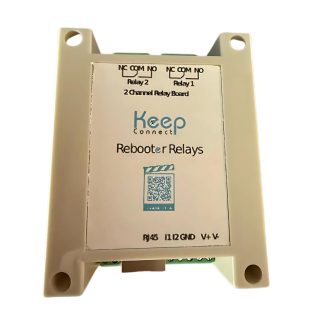
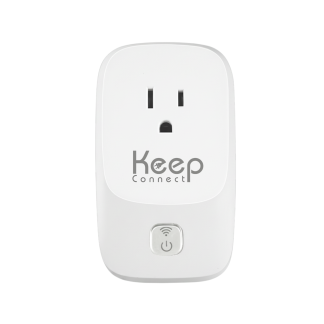
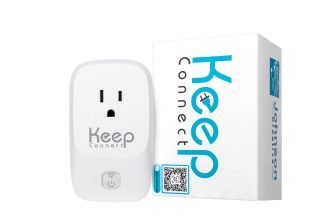
Keep Connect by Johnson Creative can handle the restart for you. You plug it into the wall and plug your modem or router into it. It monitors your internet connection and power cycles the plugged-in modem or router when it detects that the connection has dropped. It then texts or emails you once you are back online. Setup runs in a web browser, with no mobile app needed. Basic automatic rebooting needs no subscription.
For a wider look at keeping a home network online, read our home WiFi reliability guide.
Frequently Asked Questions
Why does my WiFi say connected but no internet?
"Connected" means your device has joined the WiFi network. It does not confirm internet access. The cause can be the device, a VPN, DNS, the router, the modem or your provider. Test another device first to narrow it down.
Is it my router or my internet provider?
If every device is offline, check your provider's outage page and the online light on the modem or ONT. An outage report points to the provider. A light that is off or red can mean a provider problem, but also the modem or ONT, cabling, power or the incoming line. If no outage is reported and the lights look normal, the router or modem is more likely.
Will resetting my router fix no internet?
A factory reset can fix corrupted settings, but it erases everything, including login details your provider may need. Try the other fixes first. If the router belongs to your provider, contact them before you reset it.
Why do my modem lights look normal but there is no internet?
The modem may be online while the router has frozen or lost its link to the modem. Check the cable between them and the router's internet or WAN light. Then power cycle both in order, modem first.
Why does my router keep losing internet connection?
Repeated drops can come from overheating, old firmware, an unstable provider signal, cabling or aging hardware. The section above on when the problem keeps coming back links to a full guide on each cause.
Can a router fix itself when the internet drops?
Most routers cannot. Some can restart on a schedule. A device that watches the connection, such as a smart router rebooter, can power cycle the router when it detects that the connection has dropped. It cannot fix a provider outage or failed hardware.
Stop Restarting Your Router by Hand
Some connected-but-no-internet problems clear after a power cycle. Others need a device setting change, a new cable, an equipment repair or action from your provider. If yours keeps coming back and a power cycle fixes it each time, Keep Connect can do that restart for you. It cannot fix a provider outage, a damaged cable or failed hardware. See how Keep Connect works.