 Written by Rona Sabatin
Content Writer, Johnson Creative · Updated
Written by Rona Sabatin
Content Writer, Johnson Creative · Updated
How do you reset an AT&T router? Restart it first. Unplug the power cord, remove any backup battery, wait 20 seconds and plug it back in. Or restart it in the Smart Home Manager app. A factory reset means holding the red Reset button for at least 15 seconds. It erases your WiFi name and password.
Based on AT&T's restart and reset guide, updated October 6, 2026.
Need to reset an AT&T router because your internet stopped working? AT&T says restarting your gateway may help fix common internet issues. A factory reset is different. It erases your WiFi name and password, so try a restart first.
This guide gives you AT&T’s own steps for both. It also shows what to write down before a reset and what to do after.
Should You Restart or Factory Reset Your AT&T Router?
Restart first. A restart turns the gateway off and back on and keeps your settings. A factory reset returns it to original factory settings and deletes custom settings, such as your WiFi name and password.
Here is how the three options compare, based on AT&T’s guide, Restart or Reset Your AT&T All-Fi Hub or Wi-Fi Gateway (updated October 6, 2026).
| Option | What it does | Erases your settings? | Time to come back | Know this first |
|---|---|---|---|---|
| Restart by unplugging | Turns the AT&T gateway off for 20 seconds, then back on | No | Up to 5 minutes | All devices disconnect until it comes back |
| Restart in Smart Home Manager | Uses Restart Wi-Fi in the AT&T app | No | Up to 5 minutes | Works only on the models AT&T lists |
| Factory reset (hold red button 15+ seconds) | Returns the AT&T gateway to original factory settings | Yes. Custom WiFi name, password and other custom settings | Up to 10 minutes | Write down your WiFi info and any static IP address first |
Source: AT&T, "Restart or Reset Your AT&T All-Fi Hub or Wi-Fi Gateway" and "Troubleshoot your internet" (both updated Oct 6, 2026).
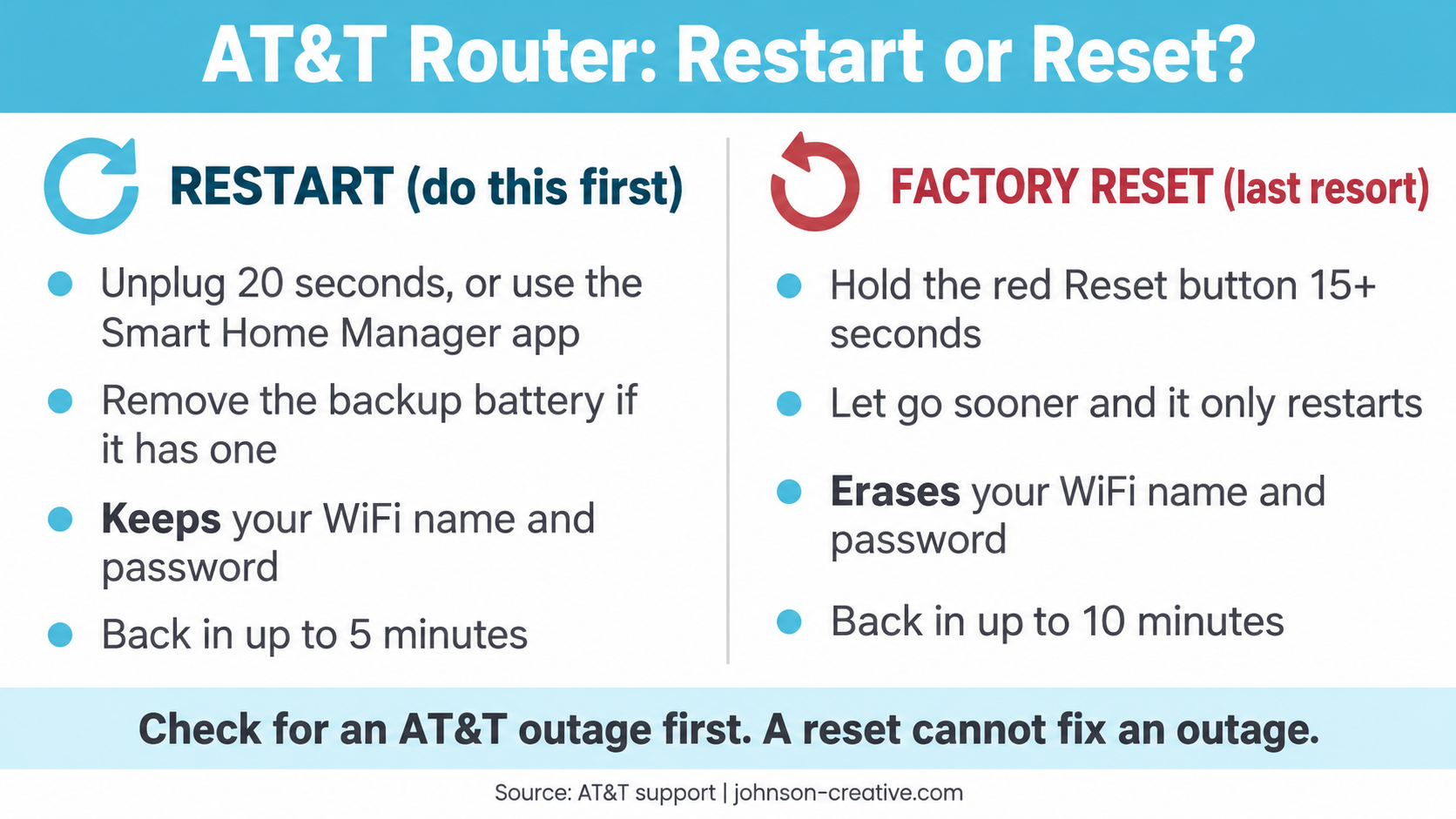
Because a factory reset deletes your custom settings, keep it for last. If you do reset, write down your WiFi name, password and any static IP address first, as AT&T advises.
Is Your AT&T Router a Gateway, All-Fi Hub or Modem?
AT&T calls its home internet equipment an All-Fi Hub or Wi-Fi gateway. A gateway combines a modem and a router in one box, so this guide uses “AT&T router” and “AT&T gateway” for the same device. AT&T’s restart and reset guide covers both All-Fi Hubs and Wi-Fi gateways.
| AT&T gateway model | Restart with the Smart Home Manager app? |
|---|---|
| BGW320 | Yes, listed by AT&T |
| BGW210 | Yes, listed by AT&T |
| BGW620 and BGW720 | Yes, listed by AT&T |
| BGW530 and BGW830 | Yes, listed by AT&T |
| NVG599 and NVG589 | Yes, listed by AT&T |
| Pace 5268AC, Pace 5168 and Pace 5031NV | Yes, listed by AT&T |
| 2Wire 2701, 2Wire i38, Netgear 7550, Westell 327 and Pace 4111 | No. AT&T says Smart Home Manager does not work with these. Restart by unplugging instead |
Source: AT&T's restart and reset guide (Oct 6, 2026) and "Change your Wi-Fi info" page (Mar 14, 2023). AT&T's restart and reset steps cover Wi-Fi gateways and All-Fi Hubs. If your gateway's buttons look different, check AT&T support for your model.
Our tip, not an AT&T step: if you use your own router with your AT&T gateway, restart both. Learn how to power cycle a separate modem and router in the right order. Not sure which box is which? See the difference between a modem and a router.
How Do You Restart an AT&T Router Without Losing Settings?
Unplug it for 20 seconds, or restart it in the Smart Home Manager app. Both keep your WiFi name, password and settings.
Method 1: Unplug the Power Cord
- Unplug the power cord from the gateway and the wall.
- Remove the backup battery, if your gateway has one.
- Wait 20 seconds.
- Put the battery back in.
- Plug the power cord back in.
These steps come from AT&T’s Troubleshoot your internet page and its restart guide (both updated October 6, 2026).
Method 2: Restart It in the Smart Home Manager App
- Open the AT&T Smart Home Manager app.
- Select Network (the Wi-Fi icon).
- Scroll to and select Restart Wi-Fi.
- Select Restart again to confirm.
Smart Home Manager works with the gateway models AT&T lists in the table above.
How Long Does an AT&T Router Take to Restart?
AT&T says it can take up to five minutes for the gateway to come back online and your devices to reconnect. Every device loses internet and WiFi until the restart finishes.
How Do You Factory Reset an AT&T Router?
Hold the red Reset button for at least 15 seconds, then wait up to 10 minutes. A reset returns the gateway to original factory settings and deletes custom settings, including your WiFi name and password.
Before You Reset, Write These Down
AT&T says to note your WiFi info and other custom settings first. Write down:
- Your WiFi network name
- Your WiFi password
- Any static IP addresses you use
- Any other settings you changed, such as port forwarding
Steps to Factory Reset an AT&T Gateway
- Find the red Reset button. AT&T says it is usually on the back.
- Press and hold it for at least 15 seconds.
- Let go and wait up to 10 minutes.
- Set your WiFi name and password again.
What Happens If You Let Go Before 15 Seconds?
The gateway only restarts. AT&T says: “If you let go before 15 seconds, it will restart, but it won’t reset.” Your settings stay as they were.
What Does a Factory Reset Erase?
AT&T says a reset “will delete any custom settings such as custom Wi-Fi network names and passwords.” Static IP addresses and other settings you changed are also lost.
What to Do After the Reset
AT&T says to change your WiFi info afterward so your devices can reconnect. AT&T also says your gateway comes with a default WiFi network name and password. You can change either one two ways (AT&T, Change your Wi-Fi info, updated March 14, 2023):
- Smart Home Manager. Sign in, go to the My Wi-Fi card and select Change next to the network name or password.
- Gateway settings page. From a device on your network, open the settings page. Have the Device Access Code from the label on your gateway ready.
Do the Steps Change for AT&T Fiber, U-verse or Internet Air?
AT&T’s guide is written for the device, not the service. It covers All-Fi Hubs and Wi-Fi gateways. Find your model in the table above and follow AT&T’s steps for it. If you have Internet Air, AT&T says to look for wireless outages.
| AT&T service | What to do |
|---|---|
| AT&T Fiber | Find your All-Fi Hub or Wi-Fi gateway model in the table above. Follow AT&T's restart and reset steps for it |
| AT&T U-verse | Find your All-Fi Hub or Wi-Fi gateway model in the table above. Follow AT&T's restart and reset steps for it |
| AT&T Internet Air | Look for wireless outages first, as AT&T advises |
| Any AT&T internet service | Check AT&T's outage page before you restart or reset |
Source: AT&T, "Restart or Reset Your AT&T All-Fi Hub or Wi-Fi Gateway" and "Troubleshoot your internet" (both updated Oct 6, 2026).
What If Your AT&T Router Still Is Not Working After a Reset?
Restarting your gateway will not end an AT&T outage, so check for one first. Then match what you see below and take the action in the last column.
| What you see | What to do |
|---|---|
| AT&T's outage page or the Smart Home Manager app shows an outage | Wait for AT&T to fix it. Restarting will not end an outage |
| Broadband light flashing red | AT&T's status lights page says this means "The gateway can't connect to our network." Check for an outage, then contact AT&T. See what each AT&T red light means. |
| Internet did not come back after a power outage | Check for an outage. If there is none, restart the gateway once |
| WiFi says connected, but nothing loads | Check for an outage, then restart the gateway once |
| Drops come back day after day | Write down when each drop happens and contact AT&T support |
| Still not working after a restart and a reset | Contact AT&T support |
Light meaning: AT&T, "Gateway status lights" (updated Mar 13, 2023). Lights vary by model, so check AT&T's guide for yours.
To check for an outage, sign in on AT&T’s Service outage info page (checked October 17, 2026). You can also use Check for outages in the Smart Home Manager app. If your devices say WiFi is connected but nothing loads, read WiFi connected but no internet. If the drops keep coming back, see our guide to a router that keeps disconnecting.
Have a different provider at another home or rental? See how to reset an Xfinity router or reset a Spectrum router.
How Can You Stop Resetting Your AT&T Router by Hand?
Use a device that checks your internet and power cycles the gateway for you. Then the gateway gets restarted even when no one is home. This matters for home offices, security cameras, smart homes and rental properties.
How Does Keep Connect Work?
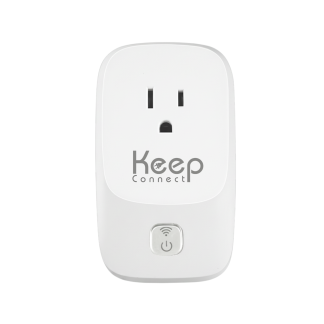
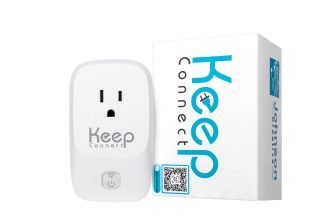
Keep Connect is an automatic router rebooter. It plugs into the wall, and compatible equipment, such as your gateway, plugs into it. According to Johnson Creative’s Keep Connect support guide “Keep Connect Fast Detection and Restoration,” it works like this by default:
- Every 5 minutes, it checks google.com.
- If that fails, it checks cnn.com as a backup.
- If both fail, it cuts power to the gateway for 30 seconds, then turns it back on.
- It sends a text or email when you are back online.
Basic automatic rebooting needs no subscription. You can change the check and power-off times in its settings. Check its 10A load rating before you buy.
Does Keep Connect Work With a Battery-Backed AT&T Gateway?
Check with Johnson Creative first. AT&T’s restart steps say to remove the backup battery. Keep Connect’s product page gives the same warning: “Removing external power may not shut down equipment with a working internal battery.”
What Can’t Keep Connect Fix?
It cannot fix an ongoing AT&T outage, a faulty cable or damaged hardware. During an outage, it may restart the gateway without bringing the internet back. To cut extra restarts, Johnson Creative’s guide “Minimize Unnecessary Resets” suggests two settings:
- Raise the backup check interval from 1 minute to 5 minutes.
- Turn on “Ignore DNS Failures if Ping 8.8.8.8 Works.”
What If You Use Your Own Router With an AT&T Gateway?
You can switch to Always Router as that router. It runs regular speed tests and heartbeat checks. It reboots itself when your connection drops. When a full power cycle is needed, it can trigger a linked Keep Connect plug.

Keep Connect Automatic Router Rebooter
$49.99
- Monitors your internet connection automatically
- Turns compatible equipment off for 30 seconds by default when the internet drops, then back on
- Sends a text or email when you are back online
- No subscription needed for basic automatic rebooting
Rated for a 10A total connected load. Keep Connect cannot fix an ongoing AT&T outage, a faulty cable or damaged hardware. Check with Johnson Creative first if your gateway has a backup battery.
What Are the Key Takeaways?
- Restart first. Unplug for 20 seconds, or use Restart Wi-Fi in the Smart Home Manager app.
- Remove the backup battery during a manual restart, if your gateway has one.
- A factory reset means holding the red Reset button for at least 15 seconds. Let go sooner and it only restarts.
- A reset deletes your custom WiFi name, password and settings. Write them down first.
- A restart can take up to 5 minutes. A reset can take up to 10. Then set your WiFi info back.
- Check for an AT&T outage before you restart or reset.
What Else Do People Ask About Resetting an AT&T Router?
Does resetting an AT&T router change the WiFi password?
A restart does not. A factory reset does. AT&T says a reset deletes custom settings such as custom WiFi network names and passwords. Set your WiFi info back after the reset so your devices can reconnect.
Where is the reset button on an AT&T router?
AT&T says the red Reset button is usually on the back of your hub or gateway. Hold it for at least 15 seconds only if you want a factory reset. To restart, unplug the power cord instead.
How long does it take an AT&T router to reset?
Up to 10 minutes after a factory reset, according to AT&T. A restart takes up to 5 minutes for the gateway to come back online and your devices to reconnect.
Can I restart my AT&T router from my phone?
Yes, with the AT&T Smart Home Manager app. Select Network, then Restart Wi-Fi, then Restart again. AT&T says the app does not work with the 2Wire 2701, 2Wire i38, Netgear 7550, Westell 327 or Pace 4111.
Do I need to remove the battery to restart my AT&T gateway?
Yes, if your gateway has one. AT&T's restart steps say to remove the internal battery when you unplug the power cord, wait 20 seconds, then put the battery back in and plug the gateway in.
Will resetting my AT&T router fix slow internet?
AT&T says restarting your gateway may help fix common internet issues. Try a restart before a factory reset, because a reset deletes your custom settings. If the problem continues, check for an AT&T outage and contact AT&T support.
How do I reset my AT&T router password?
You do not need a factory reset to change your WiFi password. Change it in the Smart Home Manager My Wi-Fi card, or on the gateway settings page using the Device Access Code on your gateway's label.
What Is the Fastest Way to Get Back Online?
Check for an AT&T outage, then restart the gateway once. Keep the factory reset for last, because it deletes your custom settings. If drops keep coming back, track when they happen and contact AT&T.
If you want the restart to happen without you, see Keep Connect. It checks your internet and power cycles compatible equipment when the connection drops. Check its 10A load rating, and contact Johnson Creative first if your gateway has a backup battery.
About the Author
Rona writes guides for Johnson Creative on router rebooting, internet reliability and home monitoring. Product details come from Johnson Creative's manuals and support articles. AI tools help with drafting, and every guide is reviewed and edited by Rona before publishing.