When a router keeps restarting or losing internet, every device in your home or business may suddenly go offline. The WiFi network might disappear completely, or devices may remain connected to WiFi but display a “No Internet” message.
A router that disconnects frequently may be overheating, running outdated firmware, losing its connection to the modem, struggling with network demand, or receiving unstable power. However, the router is not always responsible. An ISP outage, failing modem, damaged cable, or device-specific WiFi problem can produce similar symptoms.
The fastest way to solve the problem is to identify which part of the network is failing before changing settings or purchasing new equipment.
This guide organizes those problems into a practical diagnostic process, helping you distinguish a router failure from a modem, ISP, WiFi, or device-specific issue.
First, Confirm That the Router Is Disconnecting
Check what happens to other devices when the connection drops.
|
What happens?
|
Most likely problem
|
|---|---|
|
Only one phone or computer disconnects
|
That device, its WiFi adapter, software or power settings
|
|
WiFi devices disconnect, but Ethernet continues working
|
Wireless interference, weak coverage or the router’s WiFi system
|
|
Wired and wireless devices fail simultaneously
|
Router, modem, ISP, cabling or power problem
|
|
The modem’s online light goes out
|
Modem, ISP signal or incoming-line problem
|
|
The modem stays online, but the router becomes unresponsive
|
Router software, firmware, overheating, power or hardware problem
|
|
The connection returns after restarting the router
|
Temporary router fault that requires further diagnosis
|
If only one device is affected, use our broader guide: Why Does My WiFi Keep Disconnecting?.
Continue with this guide when the router itself becomes unresponsive or multiple connected devices lose service together.
1. Restart the Router and Modem Correctly
A proper restart can clear temporary software problems, refresh network connections, and restore communication between the router and modem.
If you have a separate modem and router:
- Unplug the router.
- Unplug the modem.
- Wait 30 to 60 seconds.
- Reconnect the modem.
- Wait until the modem’s normal online lights become stable.
- Reconnect the router.
- Allow several minutes for devices to reconnect.
If you have one combined modem/router gateway, unplug it, wait 30 to 60 seconds, and reconnect it.
Do not press the factory-reset button. A factory reset can erase your WiFi name, password, port-forwarding rules, and other customized settings.
For more detailed instructions, read How to Power Cycle Your Router and Modem the Right Way.
If the internet returns but the router keeps dropping the connection later, the restart is treating a symptom rather than correcting the underlying cause.
2. Prevent the Router From Overheating
Routers operate continuously and generate heat. A router without enough ventilation may slow down, freeze, restart, or disconnect from the internet.
Common placement problems include:
- Inside a closed cabinet
- Behind a television
- Directly on top of a modem
- Beside other heat-producing equipment
- Near a sunny window
- Covered by papers, boxes, or decorations
- In a hot attic, garage, or equipment room
- Positioned in a way that blocks its ventilation openings
Move the router to an open, ventilated location. Leave space around it and follow the manufacturer’s placement instructions.
Check whether the router becomes unusually hot shortly before the connection fails. If it continues overheating in a properly ventilated location, its internal hardware or power adapter may be deteriorating.
3. Update the Router Firmware
Router firmware controls wireless radios, security, traffic management, connected devices, and communication with the modem.
Manufacturers may release firmware updates to correct:
- Random router restarts
- WiFi connection drops
- WAN connection failures
- Security vulnerabilities
- Device compatibility problems
- Performance and stability issues
- Failed communication with the modem
Open the manufacturer’s router application or administration page. Look for a section called Firmware, Router Update, System Update, Maintenance, or Administration.
Only install firmware intended for the router’s exact model and hardware revision. Do not disconnect the power during an update.
The Federal Trade Commission recommends keeping router software current and checking with the manufacturer or ISP for available updates.
If the manufacturer no longer provides updates for your model, consider replacing the router with supported equipment.
4. Check the Router’s Connection to the Modem
Your modem connects the property to the internet provider. Your router distributes that connection to local wired and wireless devices.
A router may appear to be working because it still broadcasts a WiFi network, even though its connection to the modem has failed.
When the router disconnects from the internet:
- Check whether the modem’s online light remains stable.
- Inspect the Ethernet cable between the modem and router.
- Disconnect and reconnect both ends of the cable.
- Replace the Ethernet cable if it is damaged or unreliable.
- Check the router’s Internet or WAN status.
- Look for WAN disconnection messages in the router logs.
- Check the ISP’s outage page or service notifications.
If the modem loses its provider connection, replacing the router probably will not solve the problem. Contact the ISP and provide the dates and times of recurring outages.
5. Reduce Network Congestion and Device Load
A router must manage every connected computer, phone, television, speaker, camera, game console, appliance, and smart-home device.
Older or entry-level routers may struggle when many devices simultaneously:
- Stream high-resolution video
- Upload security-camera recordings
- Run cloud backups
- Download large files
- Participate in video calls
- Play online games
- Exchange frequent smart-home data
Temporarily pause downloads, backups, and streaming. Disconnect equipment you no longer use and review the router’s connected-device list.
Change the WiFi password if you suspect unauthorized devices are using the network. The FTC also recommends changing default router credentials and using WPA2 or WPA3 encryption where supported.
Quality of Service settings may help prioritize work calls, gaming, or streaming. However, these settings cannot compensate for a router that lacks the processing power, memory, or wireless capacity required by the network.
6. Investigate Wireless Interference
If Ethernet remains connected while WiFi devices disconnect, the internet service and modem may be operating normally. The failure may be limited to the router’s wireless radios, placement, or channel settings.
Possible causes include:
- Neighboring WiFi networks
- Congested wireless channels
- Bluetooth devices
- Cordless phones
- Baby monitors
- Wireless cameras
- Microwave ovens
- Thick walls and metal barriers
- Incorrect band-steering settings
- Failing wireless hardware
Test a device close to the router. If the connection becomes stable, weak coverage or interference is more likely than a complete router failure.
The 2.4 GHz band typically provides greater range but experiences more congestion. The 5 GHz band often provides better performance at shorter distances but weakens more quickly through walls.
Change only one router setting at a time and record the original configuration. This makes it easier to identify which change helped.
7. Check the Router’s Power Adapter
An unstable or failing power adapter can make a router restart or shut down unexpectedly.
Warning signs include:
- Router lights suddenly turning off
- Random router restarts
- A loose power connector
- An unusually hot adapter
- Restarts after minor electrical fluctuations
- The router losing power when its cable moves
- Buzzing or visible damage around the adapter
Only use a manufacturer-approved replacement with the correct voltage, current, connector, and polarity. An incompatible adapter can damage the router or create a safety risk.
A surge protector or uninterruptible power supply may help in a location with unstable electrical service, but it will not repair a defective router or adapter.
8. Review the Router Logs
Router logs may reveal what happens immediately before the internet connection drops.
Look for entries involving:
- WAN disconnection
- DHCP failure
- Lost ISP lease
- Authentication failure
- System restart
- Firmware or kernel error
- WiFi radio restart
- Internet connection timeout
- Unexpected configuration change
Record the time of each failure and compare it with modem light changes, ISP outage reports, electrical interruptions, scheduled router tasks, heavy network usage, and automatic updates.
Router interfaces use different terminology. Consult the manufacturer’s documentation if a log message is unclear.
Do not publish complete logs online without reviewing them. They may contain device names, local IP addresses, or other private network information.
9. Check for Scheduled Restarts and Configuration Problems
Some routers can restart automatically after firmware updates or according to a configured schedule.
Review settings for:
- Scheduled reboot
- Automatic maintenance
- Firmware installation
- Parental controls
- Internet access schedules
- Energy-saving modes
- WAN connection timers
- Automatic channel selection
- Band steering
If the router disconnects at approximately the same time every day or week, a scheduled task may be responsible.
Do not randomly disable security or firewall settings to troubleshoot a connection. Record each change and restore the original configuration if it does not help.
For security, the FTC recommends disabling unnecessary remote management and logging out of the router’s administrator account after making changes.
10. Replace Unsupported or Failing Equipment
Consider replacing the router when:
- The manufacturer no longer provides security updates.
- Firmware updates do not resolve connection problems.
- The router overheats despite adequate ventilation.
- It restarts with a verified working power supply.
- It cannot support the number of connected devices.
- It cannot handle the speed of the internet plan.
- Ethernet and WiFi connections repeatedly fail.
- Wireless service remains unstable close to the router.
- Physical ports or connectors are damaged.
- The router requires frequent manual restarts.
- Normal troubleshooting does not improve its stability.
Before purchasing a replacement, confirm that the modem, incoming ISP connection, and cables are stable.
See 7 Signs You Should Get a New Router for a complete replacement checklist.
Should You Restart Your Router Every Day?
A stable and supported router should normally operate for extended periods without requiring a daily restart.
Scheduled restarts may temporarily help when a router develops recurring software problems. However, they should not replace firmware updates, proper ventilation, a reliable power supply, appropriate router capacity, ISP troubleshooting, or replacement of defective hardware.
If a router needs to be restarted every day, investigate why it is becoming unstable.
When Automatic Router Recovery Can Help
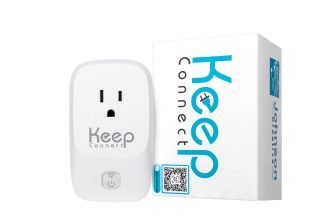
Product disclosure: Johnson Creative develops and sells Keep Connect automatic router reboot products. Keep Connect is discussed here when automatic power cycling is relevant. It cannot repair ISP outages, weak WiFi coverage, damaged lines, failing modems, or defective routers.
Automatic recovery can reduce downtime when testing confirms that power cycling normally restores the internet connection.
This may be useful for vacation rentals, remote offices, security-camera systems, smart homes, cabins, secondary properties, small businesses, unattended network installations, and equipment located somewhere difficult to access.
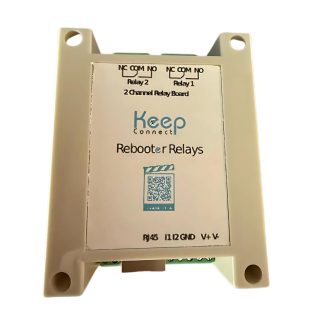
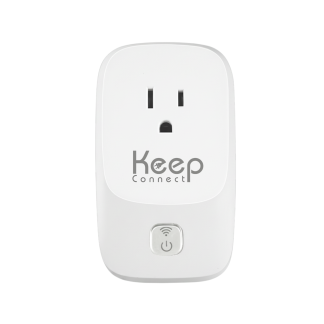
Keep Connect Automatic Router Rebooter monitors internet availability and can power-cycle connected network equipment when a failure meets its configured conditions.
It automates the familiar process of unplugging the router or modem, waiting, and restoring power. It does not repair every cause of an internet outage.
An automatic router rebooter cannot:
- Restore an ISP-wide outage
- Repair a damaged provider line
- Improve weak wireless coverage
- Replace a failed modem
- Correct insufficient router capacity
- Repair defective hardware
Automatic recovery is most appropriate when restarting the local equipment is already known to restore the connection.
For alternative recovery methods, see How to Reboot a Router Remotely.
Frequently Asked Questions
Why does my router keep disconnecting from the internet?
A router may disconnect because of overheating, outdated firmware, an unstable power adapter, a damaged WAN cable, modem problems, excessive network demand, or deteriorating hardware. Check whether the modem remains online when the router disconnects.
Why does restarting the router restore the internet?
Restarting clears temporary software problems and re-establishes communication between the router, modem, and connected devices. If the problem repeatedly returns, investigate the underlying cause instead of relying only on restarts.
Why does my router keep restarting by itself?
Unexpected router restarts may result from overheating, unstable power, a defective power adapter, firmware failure, scheduled maintenance, or failing hardware. Review the router logs and inspect its power connections.
Can too many devices cause a router to disconnect?
Yes. A router without enough processing power, memory, or wireless capacity may become slow or unstable under heavy demand. Temporarily disconnect unused devices and pause high-bandwidth activity to see whether network load is contributing to the problem.
Why does my router keep dropping internet while the modem stays online?
The router may be losing its WAN connection, experiencing firmware problems, overheating, or becoming overloaded. Check the Ethernet cable between the modem and router, review the WAN status, and inspect the router logs.
How often should I restart my router?
A healthy router should not normally require frequent manual restarts. If it needs daily or weekly restarting, investigate its firmware, temperature, power supply, connected-device load, ISP stability, and hardware condition.
Can Keep Connect fix a router that keeps disconnecting?
Keep Connect can automate a power cycle when internet monitoring detects a qualifying failure. It cannot repair failing hardware, weak WiFi coverage, damaged ISP lines, or provider-wide outages. It is best suited to situations where power cycling normally restores the connection.
Final Router Troubleshooting Checklist
If your router keeps disconnecting:
- Confirm that multiple connected devices are affected.
- Check whether the modem remains online.
- Restart the modem and router in the correct order.
- Improve the router’s ventilation.
- Install current manufacturer-approved firmware.
- Inspect the WAN cable and power adapter.
- Temporarily reduce connected-device demand.
- Review the router logs and scheduled tasks.
- Test whether the problem returns.
- Replace unsupported or failing equipment when necessary.
The objective is not simply to restart the router whenever the connection fails. It is to identify why the router keeps dropping internet and apply the appropriate long-term solution.