 Written by Rona Sabatin
Content Writer, Johnson Creative · Updated
Written by Rona Sabatin
Content Writer, Johnson Creative · Updated
When your Wi-Fi is connected, but the internet isn’t working, restarting your network equipment is often a useful first troubleshooting step. However, unplugging everything and reconnecting it right away may not give the modem and router enough time to restart properly.
The order matters when you have a separate modem and router. Restore power to the modem first, wait for it to reconnect to your internet service provider, then turn the router back on.
This guide explains how to power cycle a modem and router without erasing your Wi-Fi settings, what to do with a modem-router combination device, and when repeated restarts may indicate a larger problem.
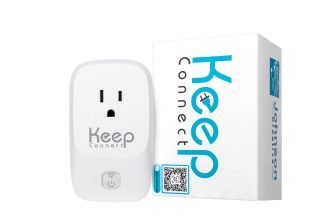
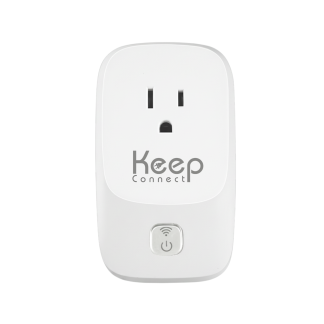
Keep Connect, made by Johnson Creative LLC, is an automatic router rebooter designed to monitor internet connectivity and power-cycle connected network equipment when its configured failure conditions are met.
How Do You Power Cycle a Modem and Router?

To power cycle separate modem and router devices:
- Unplug the router.
- Unplug the modem.
- Leave both devices unplugged for at least 60 seconds.
- Reconnect the modem first.
- Wait for the modem’s Online or Internet light to become stable.
- Reconnect the router.
- Wait for Wi-Fi to return, and then test your connection.
Do not press the recessed **Reset** button. A factory reset may erase your Wi-Fi name, password, and other customized network settings.
If one device functions as both a modem and router, unplug it, wait at least 60 seconds, reconnect it, and allow it to come fully online.
Exact startup times vary by manufacturer and internet provider. For example, NETGEAR’s home-network power-cycle instructions recommend allowing additional time for the modem to establish its connection.
How Do You Power Cycle Just the Router?
To power-cycle a router, unplug its power cable from the wall, wait 30 to 60 seconds, then plug it back in and wait 2 to 3 minutes for the Wi-Fi network to reappear.
Use 30 seconds as the minimum and 60 seconds if the connection problem keeps returning. The longer wait lets residual power drain from the router’s memory so the device starts from a clean state.
Do not press the recessed Reset button. That performs a factory reset and erases your Wi-Fi name and password.
Power cycling the router alone is enough when your devices cannot reach the internet, but the modem’s Online light is still solid. If the modem’s Online light is off or blinking, power cycle the modem as well.
What Does Power Cycling Mean?
Power cycling means completely disconnecting a device from power, waiting briefly, and then restoring power. For a router, modem, gateway, or optical network terminal, this usually means unplugging its power cable rather than simply turning Wi-Fi off on your phone or computer.
A power cycle gives the equipment an opportunity to stop its current processes and start again. It may resolve temporary software problems, failed network sessions, connection handoff problems, or issues that occur after a power interruption.
Power cycling cannot repair damaged hardware, restore a cut cable, correct an unpaid account, or end an outage at your internet provider. It is a troubleshooting step, not a universal repair.
Power Cycle vs. Restart vs. Factory Reset
These terms are often used interchangeably, but there is an important distinction.
Power cycle
A power cycle completely removes power from the device before turning it back on. For most home-network equipment, that means unplugging the power cable, waiting, and reconnecting it.
Restart or reboot
A restart or reboot stops and starts the device’s software. Depending on the equipment, this may be done with a power button, mobile app, administration dashboard, or power cycle.
Factory reset
A factory reset returns the device to its original configuration. It may erase the Wi-Fi network name, password, administrator credentials, port-forwarding rules, parental controls, and other custom settings.
For ordinary connection troubleshooting, power cycle or restart the equipment. Do not factory-reset it unless you intend to configure the network again and have checked the instructions for your exact model.
Why the Modem and Router Restart Order Matters
The modem connects your home, office, or property to your internet service provider. The router shares that connection with phones, computers, cameras, smart-home equipment, and other devices through Wi-Fi or Ethernet.
A router can sometimes broadcast a Wi-Fi network before the modem has re-established its internet connection. That is why you may see a strong Wi-Fi signal while websites and online services remain unavailable.
When restoring power, use this sequence:
- Modem first
- Wait for the modem to come online
- Router second
- Wait for connected devices to rejoin the network
This modem-first startup sequence is also recommended in Belkin’s home-network power-cycle instructions.
How to Power Cycle a Modem and Router Step by Step
Step 1: Identify your network equipment

First, determine whether you have one network device or two.
You may have:
- A separate modem and router
- One modem-router combination device, often called a gateway.
- A fiber optical network terminal, or ONT, connected to a separate router.
- A modem or ONT connected to a mesh Wi-Fi system.
If you are unsure which device is which, check the equipment labels or your internet provider’s installation guide before unplugging anything.
Step 2: Unplug the router
Disconnect the router’s power cable from the wall outlet, power strip, or power port on the device.
Do not press the small recessed Reset button. That button is normally intended for a factory reset and is not required for a standard power cycle.
If you have mesh Wi-Fi, turn off the main router and its satellite nodes. Follow the manufacturer’s instructions if the system specifies a particular startup sequence.
Step 3: Unplug the modem

After the router is off, unplug the modem from power.
Some modems include a backup battery. If yours does, unplugging the power adapter may not turn it off completely. Follow the manufacturer’s instructions for safely removing or disconnecting the battery when a full power cycle is required.
Step 4: Wait 30 to 60 seconds
Leave both devices unplugged for 30 to 60 seconds. Avoid reconnecting them immediately.
Wait a minimum of 30 seconds. We recommend a full 60 seconds because the extra time lets residual power drain from the modem and router memory.
Your modem or router manufacturer may recommend a longer waiting period. When in doubt, follow the instructions for your specific equipment.
Step 5: Reconnect the modem first

Restore power to the modem and wait for it to reconnect to the internet provider.
Startup may take several minutes. Depending on the equipment, look for a stable light labeled:
- Online
- Internet
- Broadband
- Cable
- DSL
- Fiber
Blinking lights during startup are normal. Do not reconnect the router until the modem’s connection indicator reaches its normal online state.
Step 6: Reconnect the router
Once the modem is fully online, reconnect the router. Give it several minutes to start broadcasting Wi-Fi and reconnect your devices.
Phones, computers, televisions, cameras, speakers, and smart-home devices may return at different times. A device that does not reconnect automatically may need to have its Wi-Fi turned off and back on.
Step 7: Test the internet connection
Open a website or online application on a connected device. Test both Wi-Fi and a wired Ethernet connection if possible.
If Wi-Fi is visible but the internet remains unavailable, inspect the modem’s Online or Internet light. An offline modem may point to an ISP outage, line problem, provisioning issue, or equipment failure rather than a Wi-Fi problem.
Power Cycling a Modem and Router: Quick Reference
|
Device
|
Action
|
Wait
|
Light to watch
|
|---|---|---|---|
|
Router
|
Unplug power cable
|
-
|
-
|
|
Modem
|
Unplug power cable, remove backup battery if fitted
|
30 to 60 seconds
|
-
|
|
Modem
|
Plug back in
|
1 to 2 minutes
|
Online or Internet, solid
|
|
Router
|
Plug back in
|
2 to 3 minutes
|
Wi-Fi or WLAN, solid
|
|
Any device
|
Connect to Wi-Fi and load a website
|
-
|
-
|
What If You Have a Modem-Router Combination Device?
A modem-router combination, or gateway, provides both functions in one unit. Because there is only one device, you do not need to coordinate two separate startup times.
- Disconnect the gateway from power.
- Wait at least 60 seconds.
- Reconnect it.
- Wait until the internet and Wi-Fi indicators reach their normal state.
- Test the connection.
If the gateway contains a backup battery or telephone service, consult your provider before removing the battery.
When Should You Restart Only the Router?
Restarting only the router may be appropriate when the modem appears to be online and the problem affects the local network.
Examples include:
- The Wi-Fi network name has disappeared.
- Wireless devices cannot connect, but a wired modem connection works.
- The router’s administration page is unresponsive.
- Only Wi-Fi devices are affected.
- The router appears frozen while the modem remains online
If restarting only the router does not help, power cycle both devices in the correct order.
When Should You Restart Both the Modem and Router?
Include the modem when the problem appears to affect the internet connection itself.
Examples include:
- Both wired and wireless devices are offline.
- The modem’s Online or Internet light is off.
- The connection stopped after a power outage or electrical flicker.
- Your internet provider reports that service is available, but the modem will not reconnect.
- Wi-Fi is visible, but no connected device can access the internet.
If the modem never returns to its normal online state, contact your internet provider rather than repeatedly cycling the equipment.
Common Power-Cycling Mistakes
Reconnecting the equipment too quickly
Unplugging and immediately reconnecting the devices may not provide a complete power cycle. Leave them disconnected for at least 60 seconds or follow the equipment manufacturer’s recommended duration.
Turning on the router before the modem is online
The router should be reconnected only after the modem has established its internet connection. Otherwise, Wi-Fi may return without working internet access.
Pressing the Reset button
Power cycling and factory resetting are not the same. Avoid the recessed Reset button unless you intend to erase the current configuration.
Ignoring frequent connection failures
If the network needs to be restarted every day or several times per week, investigate the underlying cause. Possible causes include overheating, outdated firmware, failing equipment, damaged cables, unstable power, poor ISP signal, or service interruptions.
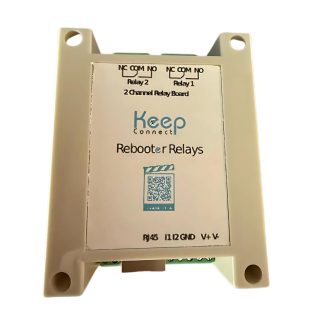
If your existing router regularly freezes or requires frequent restarts, consider whether it should be replaced. Always Router by Keep Connect is an OpenWrt-based, self-monitoring router that can detect configured connection or performance problems and automatically reboot itself. It can also work with compatible Keep Connect Rebooter devices when an external power cycle is needed.
What to Do If Power Cycling Does Not Work
If the internet connection does not return:
- Check your provider’s outage page or service-status application.
- Confirm that the modem, router, and network cables have power and are securely connected.
- Inspect the modem lights and compare them with the equipment manual.
- Test a wired Ethernet connection if one is available.
- Restart the affected phone or computer.
- Contact the internet provider if the modem remains offline.
- Contact the equipment manufacturer if the modem or router does not power on or behaves abnormally.
Power cycling will not fix:
- A widespread ISP outage.
- A damaged cable or fiber line.
- Failed modem or router hardware.
- An account or billing problem.
- Incorrect ISP provisioning.
- A device-specific software problem.
- Wi-Fi coverage limitations caused by distance or interference.
Why Manual Power Cycling Is Not Always Practical
Manual power cycling works when someone is physically near the equipment. It becomes less practical when the connection supports a remote property, security system, business, or vacation rental.
For example:
- A vacation-rental guest reports that Wi-Fi is unavailable.
- Security cameras stop responding while the owner is away.
- An office connection fails after business hours.
- A remote cabin or second home is difficult to access.
- Smart locks, thermostats, or other connected equipment go offline.
- The router is installed in a hard-to-reach location.
In these situations, the immediate solution may still be a power cycle, but no one is present to perform it.
How Keep Connect Automates Network Power Cycling
An automatic router rebooter such as Keep Connect monitors internet connectivity and power cycles compatible connected network equipment when configured connection checks fail.
The basic process is:
- Keep Connect checks the internet connection at configured intervals.
- If a primary connection test fails, it performs additional checks.
- When the configured outage conditions are met, it temporarily removes power from the connected equipment.
- It restores power so the equipment can restart.
- It waits for the network to reconnect and resumes monitoring.
This process can reduce the need for someone to visit the property solely to unplug and reconnect network equipment. See how Keep Connect monitors and restarts network equipment for a more detailed explanation.
The device cannot repair a failed router, restore an ISP outage, or fix a damaged line. It automates the power-cycle step when that is the appropriate recovery action.
Why Keep Connect Is Different From a Basic Wi-Fi Smart Plug
A basic Wi-Fi smart plug usually depends on the local Wi-Fi network to receive a remote command. If the router or internet connection is unavailable, the command may not reach the plug when it is needed most.
Keep Connect is designed specifically around connection monitoring and automatic power cycling. Its available settings include monitoring intervals, backup connection checks, power-off duration, reconnection delays, and restart limits. Review the Keep Connect advanced settings guide for configuration details.
Customers managing remote locations can also explore Keep Connect Cloud Services for supported remote monitoring and management features.
Is an Automatic Router Rebooter Right for You?
Automatic power cycling may be useful when:
- Internet-dependent devices must remain accessible.
- A property is frequently unoccupied.
- Security cameras or smart-home equipment rely on the network.
- A business needs a recovery option outside normal working hours.
- A router or modem occasionally recovers after a normal restart.
It is not a substitute for repairing unreliable equipment or poor internet service. If restarts are needed frequently, diagnose the root cause even if an automatic recovery device reduces downtime.
For remote properties and networks where connection recovery is especially important, compare the Keep Connect MAX Router Rebooter and its documented customer use cases.
The Bottom Line
To power cycle separate modem and router devices, unplug the router first and then the modem. Wait at least 60 seconds. Reconnect the modem first, allow it to come fully online, and then reconnect the router.
This procedure can resolve temporary network and software problems without deleting your Wi-Fi settings. If the modem remains offline or the problem returns frequently, investigate the equipment, wiring, electrical power, and ISP connection rather than continually repeating the restart.
When no one is available to perform a manual restart, Keep Connect can automate the power-cycle step for compatible network equipment after its configured internet checks detect a connection failure.
See the Keep Connect Automatic Router Rebooter
Already have a device? Follow the Keep Connect Quick Start Guide or consult the Keep Connect Router Rebooter Manual (PDF).
Frequently Asked Questions
Should I unplug the modem or router first?
Unplug the router first and then the modem. When restoring power, reverse the order: reconnect the modem, wait until it is online, and then reconnect the router.
Does power cycling erase Wi-Fi settings?
No. Disconnecting and restoring power normally preserves the Wi-Fi network name, password, and configuration. Pressing and holding the recessed Reset button may restore factory settings and should be avoided unless you deliberately want to reconfigure the device.
How long should I leave my modem and router unplugged?
Leave both devices unplugged for at least 60 seconds unless the manufacturer recommends a longer period. After reconnecting the modem, wait until its Online or Internet light stabilizes before powering the router.
How long does it take to power cycle a router?
About three to five minutes from start to finish. The unplugged wait is 30 to 60 seconds. The modem then needs one to two minutes to reconnect to your internet provider, and the router needs a further two to three minutes before the Wi-Fi network is usable again.
What if I have a modem-router combination device?
Unplug the single gateway device, wait at least 60 seconds, reconnect it, and wait for both its internet and Wi-Fi indicators to return to normal.
Why is Wi-Fi visible but the internet is not working?
The router can broadcast a Wi-Fi network even when the modem has not established an internet connection. Check the modem's Online or Internet light and restart both devices in the correct order.
Is it good to power cycle your router?
Yes, occasionally. A power cycle clears temporary software faults, stalled network sessions, and memory problems that build up when a router runs for weeks without interruption. It does not damage the device and it does not erase your settings.
How often should I power cycle my router?
Power cycle it when troubleshooting a temporary connection problem, not simply to follow an arbitrary schedule. If it needs restarting every day, investigate the firmware, temperature, power, cabling, hardware, and internet service.
Is it better to power cycle or restart?
A power cycle is more thorough. Restarting from the router's admin panel reloads the software but leaves the device powered, so residual power stays in memory. Disconnecting the power cable clears that state. Use the admin panel restart for convenience and a full power cycle when a problem keeps returning.
Will power cycling improve internet speed?
It may restore normal performance if the router or modem is temporarily frozen or overloaded. It cannot increase the maximum speed included in your internet plan.
What are signs that your router is going bad?
Watch for connection drops that return within hours of every restart, a router that runs unusually hot, indicator lights that never reach a stable state, Wi-Fi range shrinking over time, and equipment that needs a power cycle more than once a week. Power cycling cannot repair failing hardware, so at that point the answer is replacement or a call to your internet provider.
If several of those apply, see signs your router needs to be replaced.
Can Keep Connect automatically power cycle a router?
Yes. Keep Connect is designed to monitor internet connectivity and automatically power cycle compatible connected network equipment when its configured failure conditions are met. It cannot correct an internet provider outage or repair failed hardware.
What is Always Router by Keep Connect?
Always Router by Keep Connect is an OpenWrt-based, self-monitoring router. It can test internet connectivity and network health, automatically reboot itself when configured conditions are met, and work with compatible Keep Connect Rebooter devices when an external power cycle is needed.
About the Author
Rona writes guides for Johnson Creative on router rebooting, internet reliability and home monitoring. Product details come from Johnson Creative's manuals and support articles. AI tools help with drafting, and every guide is reviewed and edited by Rona before publishing.