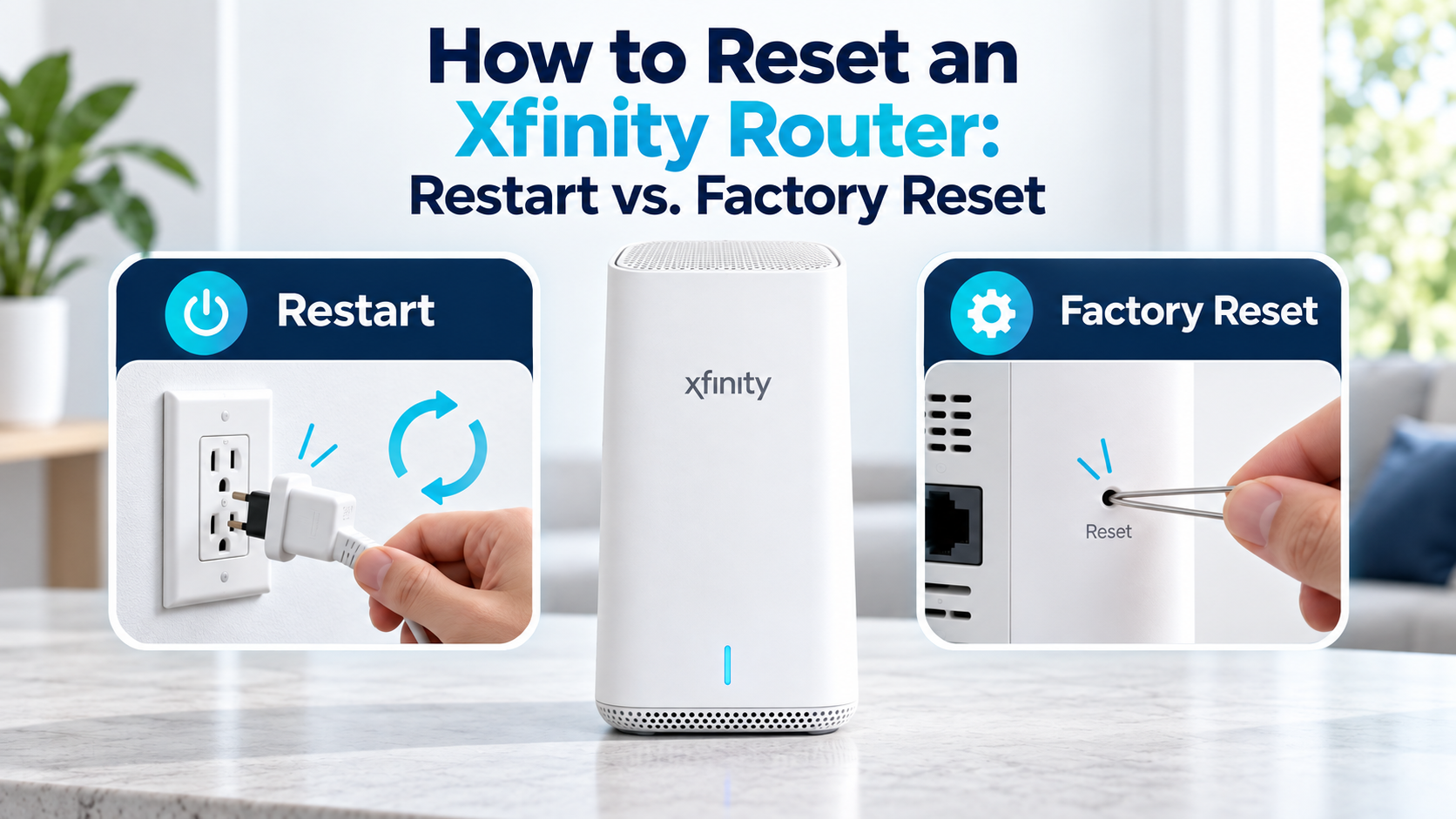
Quick answer: To restart an Xfinity router without losing your WiFi settings, unplug the gateway’s power cable, wait one full minute, and plug it back in. If you rent the gateway, you can also restart it through the Xfinity app under Troubleshoot. Allow up to 12 minutes for the restart to finish. A factory reset is different and erases your WiFi name and password.
When your Xfinity internet stops working, resetting the router may seem like the fastest solution. But pressing the reset button unnecessarily can create a second problem. A factory reset can erase your WiFi name, password, and other customized settings, leaving every device in the house disconnected.
In most cases, you just need a restart, also called a reboot. If the app cannot restart the gateway, you can manually power-cycle it by disconnecting and restoring power. Neither method intentionally erases your saved settings. A factory reset does, and it returns supported models to their original configuration.
Restart or factory reset: which one do you need?
Four different situations require a reset. Only one of them erases your settings.

| Action | What happens | Keeps your WiFi name and password? | When it applies |
|---|---|---|---|
| Restart (reboot) | The gateway turns off and on, then re-establishes its connection to Xfinity’s network. | Yes | Internet is slow, frozen, or dropping across several devices. |
| Power cycle | Cutting power shuts down the gateway and starts it again when power returns. | Yes | The app cannot reach the gateway, or the gateway is unresponsive. |
| Factory reset | The gateway returns to the settings it shipped with. | No | You have lost Gateway Admin Tool access, or Xfinity Support has instructed you to reset it. |
| ISP outage | This is not something you perform. Comcast equipment serving your area is down. | Not applicable | Nothing you do at home will resolve the outage. |
Choose a restart when your connection is slow, frozen, or dropping, when every device has lost internet access, when the gateway appears stuck, or when Xfinity troubleshooting recommends one.
Choose a factory reset only when you need to restore a supported gateway to its original settings, when you have lost access to the Gateway Admin Tool and model-specific guidance calls for a reset, or when Xfinity Support has told you to perform one.
Do neither when Xfinity has a confirmed service outage. Restarting equipment in your home cannot restore service while the provider’s network is unavailable.
The safest rule is simple: restart first, and factory reset only when necessary.
Before restarting, check what is offline
Thirty seconds here can save you twelve minutes of downtime.
- Only one device is offline. Reconnect or restart that device first. The gateway is probably fine.
- WiFi works but no device has internet. The gateway or the Xfinity connection is involved. Continue below.
- No WiFi network appears at all. Confirm the gateway has power and inspect its cables before anything else.
- The connection is slow rather than dead. Test another device and move closer to the gateway. Distance, congestion, and device problems also reduce speed.
- Check the Xfinity Status Center for a reported outage before changing any equipment settings.
How to restart an Xfinity router without losing your settings
Xfinity documents two gateway restart methods: unplugging the power cable, and using the Xfinity app with a rented gateway. It separately directs customers to online troubleshooting through Xfinity.com. A restart does not intentionally erase the gateway’s saved configuration.
Method 1: Unplug the power cable
This method needs no account, no app, and no working internet connection.
- Unplug the gateway’s power cable.
- Wait one full minute. Xfinity specifies one minute, not thirty seconds.
- Plug the cable back in.
- Let the gateway finish starting up before testing the connection.
According to Xfinity’s cable modem troubleshooting guide, the restart process can take up to 12 minutes. A gateway still reconnecting after six minutes is not necessarily malfunctioning. Avoid unplugging it again while the indicator lights are still changing.
Some Xfinity Voice gateways contain a backup battery. If unplugging the power cable does not turn the gateway off, use Method 2 or contact Xfinity for instructions for your model.
Method 2: Restart it with the Xfinity app

Customers who rent an Xfinity gateway can restart it through the app.
- Open the Xfinity app and sign in.
- Select the WiFi icon.
- Select Troubleshoot.
- Select Restart your Gateway.
- Confirm the restart and allow up to 12 minutes for it to finish.
The option may work while you are away from home, when Xfinity can communicate with the rented gateway. Availability depends on your account, equipment, and current connection status.
If you need more help: troubleshoot through Xfinity.com
If you are on a computer, sign in at Xfinity.com and follow its online troubleshooting. This is a diagnostic and support route rather than a separate browser restart button. Xfinity may run checks, recommend a restart, offer further steps, or help you schedule service.
Labels in the account interface change over time, so follow the current on-screen prompts rather than a fixed menu path.
Important service warnings
Your home network is unavailable for the duration of the restart.
If you use Xfinity Voice, your home phone cannot make or receive calls during the restart, including 911. Have a charged mobile phone available before you begin.
If you use Xfinity Home: you may temporarily lose access to cameras and connected home-automation devices. Xfinity says security sensors are not affected.
How to factory reset an Xfinity gateway
First, check which password you actually lost. Your WiFi password and your Gateway Admin Tool password are different. If you only need the WiFi password, find it in the Xfinity app instead of resetting anything. If you have forgotten a customized Admin Tool password, restoring access may require a factory reset. Check which one you need before reaching for a paperclip.
Before resetting, record your current WiFi name and password from the Xfinity app if you want to reuse them afterward.
Xfinity’s published factory reset procedure specifically covers rented XB2 and XB3 gateways:
- Find the small reset pinhole on the back of the gateway.
- Use a paperclip or pin to press and hold the button for 30 seconds.
- Release the button and wait for the gateway lights to flash and become solid.
- Reconnect your devices with the default WiFi name and password printed on the gateway label.
Do not assume an XB6, XB7, XB8, or customer-owned device uses the same procedure. Check the model and follow its current manufacturer or Xfinity instructions.
If you use Xfinity Voice: Xfinity states that Voice service stops during the reset and returns once the gateway restarts. Keep a charged mobile phone nearby in case you need to make a call, including an emergency call, while service is down.
What a factory reset can erase
- Your customized WiFi network name
- Your WiFi password
- Guest-network settings
- Port-forwarding rules
- Other customized gateway settings
Every phone, laptop, streaming device, printer, camera, smart plug, and other connected device may then need to be reconnected by hand. That is the real cost, and it is why a factory reset belongs at the end of the list rather than the start.
How to restart a separate Xfinity modem and router
An Xfinity gateway combines the modem and router in one device. Restarting that single gateway restarts both functions, and there is no order to think about.
If you use a separate modem and your own router, sequence matters:
- Unplug both devices.
- Wait one minute.
- Plug in the modem first.
- Wait for its Online or Internet indicator to show that service has returned.
- Plug in the router.
- Wait for the router to finish starting, then test the connection.
Starting the modem first gives it time to establish service before the router asks for an internet connection, which makes recovery more predictable.
For a more detailed walkthrough, read how to power cycle your router and modem the right way.
Does this apply to Comcast internet?
Xfinity is Comcast’s residential internet brand, so these instructions apply to many residential Xfinity customers. The available controls and the correct reset procedure still depend on the gateway model and on whether the equipment is rented or customer-owned.
Comcast Business customers should use the instructions for their specific business gateway or contact Comcast Business support. Do not assume the residential Xfinity app or the XB2/XB3 factory reset procedure applies to business equipment.
What to do if the Xfinity router still does not work
If the gateway is still offline after a full restart, work through these checks in order.
Check for an Xfinity outage
Make sure the gateway is upright or positioned as directed, has clear space around it, and isn’t covered or trapped in a closed cabinet.
Look for a pattern
Record when the problem occurs, which devices are affected, how the gateway lights behave, and whether wired and wireless connections fail together. Those details help separate a WiFi problem from a gateway, cabling, or Xfinity service problem.
Contact Xfinity when the problem keeps returning
A restart that fails does not prove the gateway is healthy. The equipment may be faulty, incorrectly provisioned, or receiving a poor signal. Ask Xfinity to check the connection and discuss replacement options if the rented gateway is defective.
If repeated disconnections are the main problem, see how to fix a router that keeps disconnecting.
How to automate recovery on an Xfinity internet connection
Manual troubleshooting works when someone notices the outage and is available to act. That is not always the case for a home office, a security-camera connection, a smart home, or a vacation property. The connection drops at 10 a.m. while you are at work, and nobody finds out until the evening.
Keep Connect: automatic power cycling for compatible equipment

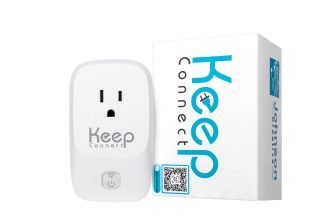
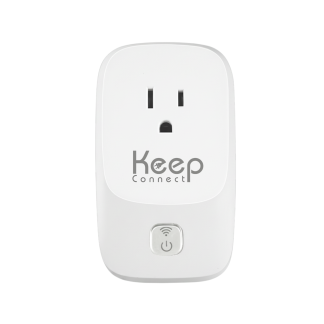
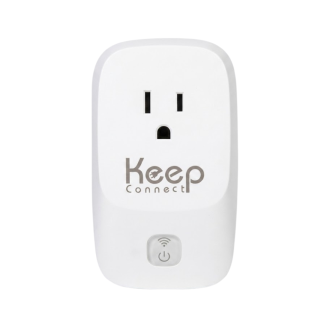
Keep Connect is an automatic router rebooter. It monitors internet connectivity and power cycles compatible network equipment when configured internet-loss conditions are detected. It plugs in between your equipment and the wall outlet, so you keep the hardware you already have.
Keep Connect can:
- Check internet connectivity automatically, so a failure is detected rather than discovered
- Power cycle compatible connected network equipment
- Send email or SMS notifications when configured
- Operate without modifying the software inside compatible connected equipment
- Provide additional remote-management features through optional cloud services
Keep Connect does not perform a factory reset. It also cannot repair damaged hardware, loose cabling, or an active Xfinity outage.
Some Xfinity Voice gateways have backup batteries that may keep the device powered when Keep Connect cuts outlet power. Contact Johnson Creative before using Keep Connect with a battery-backed voice gateway.
Always Router: monitoring and recovery built into the router

Always Router is an OpenWrt-based router with built-in connection, speed, and network-health monitoring. It can perform configured recovery actions when selected failure or performance thresholds are met.
Always Router can:
- Run local connection and speed checks
- Trigger supported router-recovery actions
- Send free email and SMS notifications with detailed error messages
- Connect to optional Keep Connect Cloud Services
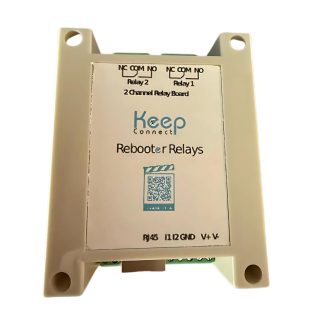
- Link with a compatible Keep Connect Rebooter Smart Plug to request a hard power cycle when needed
Always Router is intended to serve as the separate router in a compatible setup behind a modem or gateway. It does not replace the modem function of an Xfinity gateway. Confirm the required network configuration and equipment compatibility before installation. Like Keep Connect, it cannot resolve an Xfinity service outage or repair damaged equipment and cabling.
Keep Connect, Always Router, or both?
| Your setup | Better fit |
|---|---|
| You use a compatible all-in-one Xfinity gateway | Keep Connect, which power cycles connected equipment at the outlet. Check electrical and battery compatibility first. |
| You use a separate router behind an Xfinity modem or compatible gateway | Always Router, which serves as that separate router and provides built-in monitoring and recovery controls. |
| You want monitoring plus a hard power cycle | Always Router with a compatible Keep Connect Rebooter Smart Plug. Confirm compatibility first. |
| You want automatic recovery without replacing any equipment | Keep Connect |
No local device can restore service during an unresolved Xfinity network outage. These products address equipment recovery and the time between a connection failure and someone noticing it.
Current pricing and optional-service availability can change. Check the Keep Connect product page and the Always Router product page before purchasing.
Frequently Asked Questions
Will restarting my Xfinity router change my WiFi password?
No. Restarting or power cycling an Xfinity gateway does not intentionally erase its WiFi name, password, or customized settings. A factory reset erases customized settings and restores the defaults printed on the gateway label.
How long does an Xfinity router take to restart?
Up to 12 minutes, according to Xfinity's own troubleshooting guidance. Your home network is unavailable during that time. Wait for the gateway to finish reconnecting before unplugging it again or trying another reset.
Where is the Xfinity router reset button?
On XB2 and XB3 gateways, Xfinity describes the Reset button as a small hole on the back of the device. Holding it for 30 seconds starts a factory reset and erases customized settings. Other models may use a different procedure, so verify your model before pressing anything.
Can I restart my Xfinity router with the app?
Yes, if you rent your gateway from Comcast. Open the Xfinity app, select the WiFi icon, choose Troubleshoot, then select Restart your Gateway. The app performs a restart, not a factory reset. It may work while you are away from home, when Xfinity can communicate with the gateway.
Can I restart my Xfinity router through a web browser?
Not directly. Xfinity directs customers on a computer to sign in at Xfinity.com and use its online troubleshooting, which is a diagnostic route rather than a separate restart button. The system may check the connection, recommend a gateway restart, offer further steps, or help arrange service.
How often should I restart my Xfinity router?
Xfinity does not set a routine restart schedule in its troubleshooting guidance. If the gateway needs frequent reboots to stay connected, investigate outages, signal quality, cabling, ventilation, gateway condition, and connected-device problems rather than relying on repeated restarts. Our guide on how often you should reboot your router goes into more detail.
Will restarting an Xfinity gateway affect my home phone?
Yes. Xfinity Voice cannot make or receive calls during the restart, and that includes emergency 911 calls. Keep a charged mobile phone available before restarting the gateway.
Can a restart fix slow Xfinity internet?
Sometimes. A restart may resolve a temporary gateway or connection problem. It will not fix every cause of slow service, such as an Xfinity outage, poor signal, damaged cabling, WiFi congestion, weak coverage, or a problem with one device.
What is the difference between Keep Connect and Always Router?
Keep Connect adds automatic power cycling to compatible existing equipment, sitting between that equipment and the wall outlet. Always Router is a separate OpenWrt-based router with built-in network monitoring and configurable recovery actions. They can also work together, with Always Router handling monitoring and a compatible Keep Connect Rebooter Smart Plug providing the hard power cycle when configured to do so.
Restart first. Reset only when necessary.
When your Xfinity internet stops working, begin with an outage check and a restart. Those steps preserve your network settings and solve many temporary gateway problems without disconnecting every device in your home.
Reserve a factory reset for a supported model and a specific need. If repeated outages are hard to catch, or if they require someone to power cycle equipment by hand, compare Keep Connect and Always Router to find the recovery setup that fits your equipment.