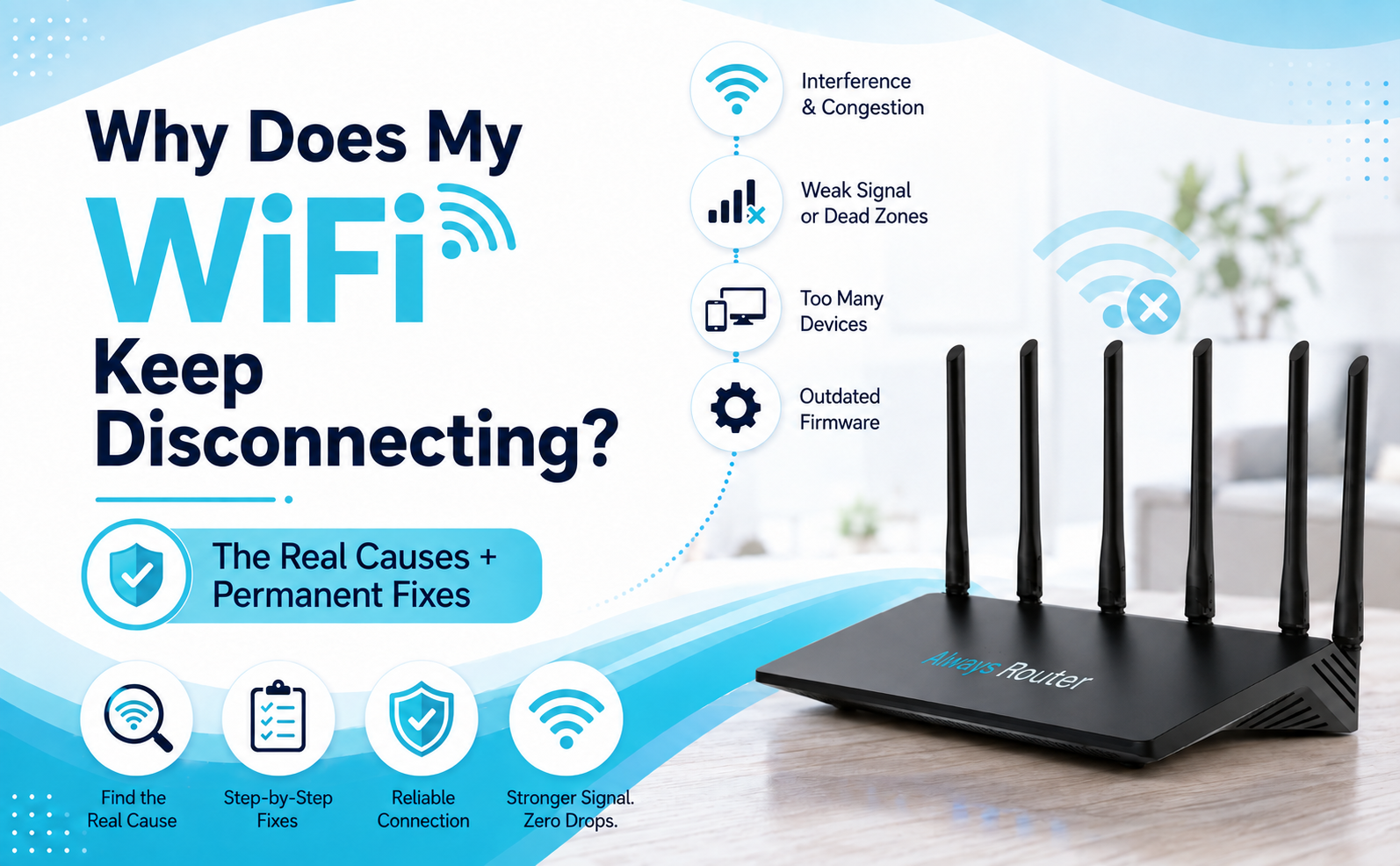
Nothing kills productivity faster than a WiFi connection that keeps disconnecting. You’re on a video call and all of a sudden you’re off.” Your television buffers, security cameras go down, or your phone says you are connected but nothing will load.
If your WiFi keeps dropping in and out, start with the router. But the real reason could be the router, modem, internet provider, wireless signal, connected devices, or even the placement of your gear.
What is the right fix ? It depends on what part of the connection is breaking down . This guide discusses the most common causes, the best troubleshooting steps to try right away, and how automatic connection recovery can reduce future downtime.
The Most Common Causes of Why Your WiFi Keeps Dropping
Before you call your Internet Service Provider or replace your router, find out what “disconnecting” really means.
There are three common cases:
- Your device loses WiFi signal completely.
- Your device is still connected to Wi-Fi but can’t access the internet.
- All connected devices are taken off-line across the entire network.
If just one phone or laptop keeps disconnecting, the problem may be with that device. If all of your devices drop internet at the same time, it’s likely your router, modem, ISP connection, or power supply.
Router overheating or memory overflow
A router is a small computer that runs 24/7. It directs internet traffic, supplies local network addresses and maintains the wireless connection. It talks to every device on your network.
Heat and temporary software glitches can interfere with that work.
If your router is in a closed cabinet, next to another heat-generating device, or in direct sunlight, it may not be getting enough airflow. When internal temperatures rise, performance may decline or the router may become unstable.
You could also have transient software errors causing the same symptoms. After a long period of operation, the router may not react as it should, may not be able to communicate with the modem, or may not be able to maintain connections.
Signs that the router itself may be locking up are:
- The WiFi network remains visible, but there is no internet.
- The admin page hangs.
- All connected devices go offline simultaneously.
- Connection returns after a reboot.
- The problem occurs more often as the router warms.
- The lights stay on but the network is not responding.
Place the router in an open, ventilated space and avoid stacking equipment directly on top of it. If the connection comes back after a reboot but the same failure keeps happening, your router might need a firmware update, an automatic recovery system, or replacement.
ISP signal issues or line problems
Sometimes the WiFi is fine, but the internet service that feeds it isn’t.
Your router can still send out a strong WiFi signal even if the modem is disconnected from the internet provider. This is why one device might say “connected,” but websites and apps are still not working. Our guide to WiFi connected but no internet shows how to find which part of the connection has failed.
Possible ISP side causes include:
- Blackouts in the area
- Maintenance
- External wires broken
- Weak cable, DSL, or fiber signal
- Loose connectors
- Line noise
- Network congestion.
- Modem provisioning issues
- Equipment for failing providers
Check the modem lights when the connection is lost. If its online, internet, broadband, cable, fiber or DSL light goes out or blinks in a way that it shouldn’t, the problem could be upstream of the router.
You can also hook a computer up directly to the modem when the equipment and provider allow. If the wired connection fails at the same time, replacing the WiFi router probably will not solve the underlying problem.
Log the time of each outage. A clear pattern can help your provider investigate repeating line or signal issues.
Too many devices on the network
You may be shocked at the number of connected devices in a modern house.
Phones, laptops, tablets, televisions, speakers, security cameras, doorbells, thermostats, game consoles, printers, smart plugs, appliances and guest devices can all be connected to the same router.
An older or entry-level router may struggle when there are many devices:
- Video streaming at the same time
- Upload security camera footage
- download big files
- Cloud backups
- Join video call
- Play games online
- Frequent exchange of Smart-Home-traffic
The result can be slow performance, high latency, dropped devices or an unstable router .
First, unplug any devices you no longer use. If you do not know the WiFi password, then chances are that someone else is using your WiFi. Change the WiFi password. Try stopping large downloads and cloud backups and see if the connection stabilizes.
Quality of Service settings can help prioritize work calls, gaming, or streaming. But if your router typically becomes unstable with normal household demand, it may be that it no longer has enough processing power or wireless capacity for your network.
Old router firmware
The firmware in the router is the code that manages how the device handles security, network traffic, wireless radios and attached hardware.
Manufacturers can supply updates to correct:
- Security threats
- Connection instability
- Compatibility issues
- Performance problems
- Bugs (wirelessly
- Device management mistakes
An older router can still work, but unresolved firmware issues can lead to frequent disconnects or unreliable communication with newer devices.
Open your router’s app or admin page and navigate to the firmware or system-update section. Always back up your configuration first, when the manufacturer recommends it, and avoid turning the power off during an update.
Some routers automatically install updates. Others need to be approved manually.
If the manufacturer has stopped releasing security or stability updates for your model , it might be safer to replace your router than try to continually fix its behavior .
Weak signal or Wi-Fi interference
If your internet is fine near the router but disconnects in another room, the problem is likely wireless coverage, not your internet service.
WiFi signals get weaker with distance and physical barriers. Typical challenges are:
- Concrete walls
- Brick
- Metal shelves
- Major Appliances
- Thoughts
- Floors and ceilings
- Aquaria
- Furniture dense
Other radio equipment may be competing for the same radio space. Interference can be caused by nearby routers, Bluetooth devices, cordless phones, baby monitors, wireless cameras and microwave ovens.
The distinction between the 2.4 GHz and 5 GHz bands also matters.
The 2.4 GHz band generally has a longer range and better penetration through walls but it is also more crowded. The 5 GHz band can offer faster speeds at shorter range but drops off more quickly through walls and other obstructions.
If a device disconnects while roaming around the building it could be hopping between access points or getting to the edge of the usable signal.
Before you purchase new equipment, test the device near the router. If the connection is unstable, try moving the router to a different location, switch to a less busy channel, or consider a well designed mesh or access-point system.
Quick Fixes to Try Out Now
Start with the least disruptive fixes. Test the network after each step rather than changing several settings at once. This makes it easier to identify what actually solved the problem.
Restart your router properly
A proper restart is better than quickly unplugging and plugging back in equipment.
If you have a separate modem and router:
- Unplug your router.
- Take out the modem.
- Wait 30 to 60 seconds.
- Now reconnect the modem.
- Wait for the modem to reconnect to the provider.
- Plug the router back in.
- Give your devices a few minutes to reconnect.
There is more to get right than the order. Our full guide on power cycling the router and modem covers combination gateway devices, which indicator lights to wait for, and the mistakes that undo the restart.
The modem comes on first because it connects us to the outside internet. The router then takes that connection and shares it with the devices on the local network.
Don’t hit the factory-reset button. A normal restart will keep your name, password, and settings for WiFi network. A factory reset could wipe them out.
Want to learn more? Read our guide on how to properly restart your router.
If reboot fixes the problem, but the network fails again and again, the reboot is treating the symptom, not the cause.
Keep Connect restarts your current router automatically when the internet goes down.
Update your router’s firmware
Check for any firmware updates available on the router’s app or local admin page and log in to the router.
The menu could be named:
- Software
- Router Update 2
- System Upgrade
- Administration
- Upkeep
- Additional settings
Flash firmware only intended for your specific router model and hardware revision.
After installation test the network under normal use. Notice the same devices, rooms, and activities that caused disconnections before.
If the firmware is up to date, check the manufacturer’s support information for any known stability issues or recommended settings.
Change your WiFi channel
Each frequency band is split into WiFi channels. Interference from nearby routers that use the same or overlapping channels can cause reliability problems.
Many routers will pick a channel for you. That’s okay in some places, but a crowded apartment building or office may require a different choice.
You can see the networks around you with your router’s app, wireless settings or a WiFi-analysis tool. Then, if you have a manual selection option, choose a channel with less congestion.
The 2.4 GHz networks have very important channel overlap. On 5 GHz networks, you might have more channels, but range and compatibility may vary.
Change one thing a day and monitor performance for a day. A channel that is empty at noon may be full at night when more neighbors are on line.
Move your router to a better location
The placement of a router is often more important than people think.
For better coverage, place it:
- Near the center of the usable area
- On a shelf or raised surface
- In the open space
- Away from big metal stuff
- Away from direct sunlight
- Away from cordless phone bases and microwave ovens
- Outside of closed drawers
- Away from dense structural barriers where possible
Don’t hide the router behind a TV or place it on the floor in the far corner just because that’s where the internet cable comes into the building.
If the modem has to be located in a specific spot, a longer Ethernet cable might let you put the router in a better spot.
On large or irregularly shaped properties, a mesh network or wired access points may provide better coverage than a single powerful router.
When Quick Fixes Don’t Work
Restarting, updating, repositioning or changing channels can fix many disconnection problems. But if you keep failing, your current network equipment may no longer be reliable enough.
Signs your router needs to be replaced
Router replacement when:
- It’s no longer supported with security updates.
- Even with proper ventilation it gets too hot.
- It regularly freezes at normal demand.
- The WiFi is still flaky, even near the router.
- Ethernet and WiFi functions fail repeatedly.
- Power adapter or hardware seems unreliable.
- It can’t keep up with your internet-plan speed.
- It has trouble with how many devices are connected.
- Firmware updates and config changes don’t fix it.
- It needs to be restarted manually, daily or near daily.
A replacement router won’t fix an ISP outage, a damaged line coming into the house or a weak signal to the modem. Make sure the router is the failing part before you spend money on new hardware.
One practical test is to compare wired and wireless behavior. If the wired device connected to the router also loses internet when WiFi drops, it could be the router’s connection to the modem or ISP. If the wired connection is stable and only the wireless clients are disconnecting it is more likely to be the wireless system.
The case for a self-healing router
Traditional routers sit and wait until someone notices a problem.
If the connection fails, the user has to diagnose the problem, sign in to the router, press a restart button or physically unplug the equipment.
That is inconvenient in a home office, and even worse at an unattended location.
A self-healing router adds active monitoring and the ability for automatic corrective actions. It does not simply send data . It checks the health of the connection periodically and responds to certain conditions that occur which indicate a failure .
This may be useful for:
- Telecommuters
- Vacation rentals
- Small business
- Security camera systems
- Intelligent homes
- Cabins and holiday homes
- Remote monitoring systems
- Properties where no one is there to restart equipment
A self-healing system can’t repair the ISP’s broken cable or restore service during a provider-wide outage. What it can do is detect when the local router isn’t working properly and try to recover on its own without waiting for human intervention.
The Permanent Solution – A Self-Healing Router
The closest thing to a permanent fix is a network that can detect common local failures and self-heal.
That still starts with good fundamentals: Reliable ISP connection, proper equipment, good WiFi coverage, updated firmware, and proper placement.
Then comes automatic recovery for further protection.
What is a self healing router?
A self-healing router watches some characteristic of its own network performance and takes some corrective action when the results go beyond configured limits.
This may include: – Depending on the system
- Heartbeat checks running
- Checking internet connection…
- check internet speed
- Restart router software
- Restarting the router
- External hard power cycle starting
- Failed recordings
- Email or SMS alerts
The point isn’t to pretend outages don’t happen. It is to minimize the time between failure and the recovery.
With a normal router, the network may stay down until someone notices. Active monitoring allows corrective action to be automated.
How Always Router Automatically Finds and Fixes Drops
Always Router is an OpenWrt based router, with an architecture based on automatic connection monitoring and recovery.
It does Internet checks and speed tests and network health monitoring. It has configured triggers that allow it to restart itself when the connection is lost or performance falls below selected thresholds.
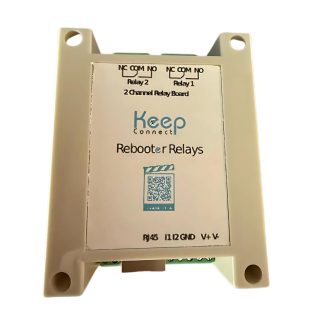
For problems that require a full power cycle, the Always Router can be paired with a Keep Connect Rebooter Smart Plug. Which lets the system escalate from a software reboot to an external hard power cycle.
This gives rise to two levels of recovery:
- Self-reboot: The router always tries to restore service by rebooting its own router functions.
- External power cycle: If your unit has Keep Connect, it can be fully powered down and rebooted together with the connected equipment.
Always Router also offers local monitoring without a subscription. Optional Keep Connect Cloud Services add remote management, analytics and reporting for those managing multiple devices or locations.
That doesn’t mean it can fix every reason the internet keeps going on and off. It can not fix an ISP line, remove all radio interference , nor restore provider service during an outage .
The upside to this is that typical local connectivity and router failures no longer need to wait for someone to notice and take action.
For remote properties, smart-home systems and work environments, that difference can turn a long outage into a shorter, automatically managed recovery event.
The Budget Option — Keep Connect Smart Plug
You may not have to replace your existing router.
If your router is generally solid but occasionally freezes or can’t reconnect after a power outage, Keep Connect is a simpler upgrade.
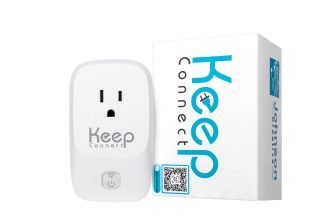
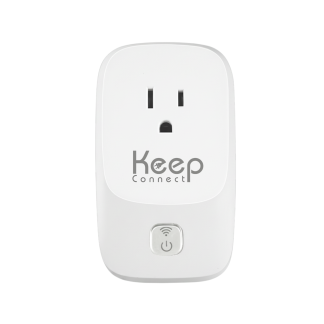
Keep Connect is an automatic router rebooter that plugs in between your outlet and your router or modem. It monitors internet connectivity and power cycles when the connection is still down after its configured checks.
It kills power to the connected network device, pauses, restores power and gives the equipment a chance to boot and reconnect when it goes through a recovery cycle. Once Internet connectivity is restored it will resume monitoring and if you have set up alerts, it will send out a notification.
Keep Connect comes in handy particularly when:
- Rebooting fixes the connection most times.
- You want to keep your existing router.
- The network is in a remote location.
- The security cameras need the internet.
- Guests or family members should not be troubleshooting equipment.
- The router is not easy to access.
- You want scheduled resets and outage recovery.
This is not a substitute for a router with bad range, poor security or lack of capacity. It also will not restore an ISP service that is still down.
Here’s how to think about the two products:
- Keep Connect adds automatic hard-reboot capability to your existing router or modem.
- Always Router replaces the router with a system that monitors network health and internally recovers from common failures, with the ability to trigger a Keep Connect power cycle.
For those happy with their current router, Keep Connect is the cheaper route to automatic recovery. If you’re ready to replace aging equipment and want to add deeper monitoring, Always Router is a more complete upgrade.
The Always Router checks speed and connection 24/7 — and self-heals before you even realize there’s a problem.
FAQ
Disconnections that occur at night can be caused by scheduled ISP maintenance, automatic router updates, busy WiFi channels, planned router restarts, overnight cloud backups, or electrical interference from devices running at the time. Confirm that all devices lose connection at the same time . Check the router logs , reboot schedule , firmware settings and ISP outage history . If only one device disconnects, check the sleep and power-saving settings on that device.
A phone can disconnect due to weak signal, saved-network corruption, battery-saving features, automatic switching between WiFi and mobile data, VPN problems, outdated software, or compatibility issues with the router’s security and frequency settings. Forget the WiFi network, reconnect with the password, restart the phone, update the software, and test near the router. If other devices are still connected, the phone is more likely the problem.
First, check whether the failure is with one device, the WiFi signal, the router, the modem or the ISP connection. Update firmware, move router location, reduce interference, select a better channel, replace unsupported or failing hardware. For repeated router level failures, use automatic monitoring and recovery using a self-healing router or an external router rebooter. No single device can protect you from all ISP outages or line issues, but with the right setup you can reduce unnecessary disconnects and automatically fix many local failures.