 Written by Rona Sabatin
Content Writer, Johnson Creative · Updated
Written by Rona Sabatin
Content Writer, Johnson Creative · Updated
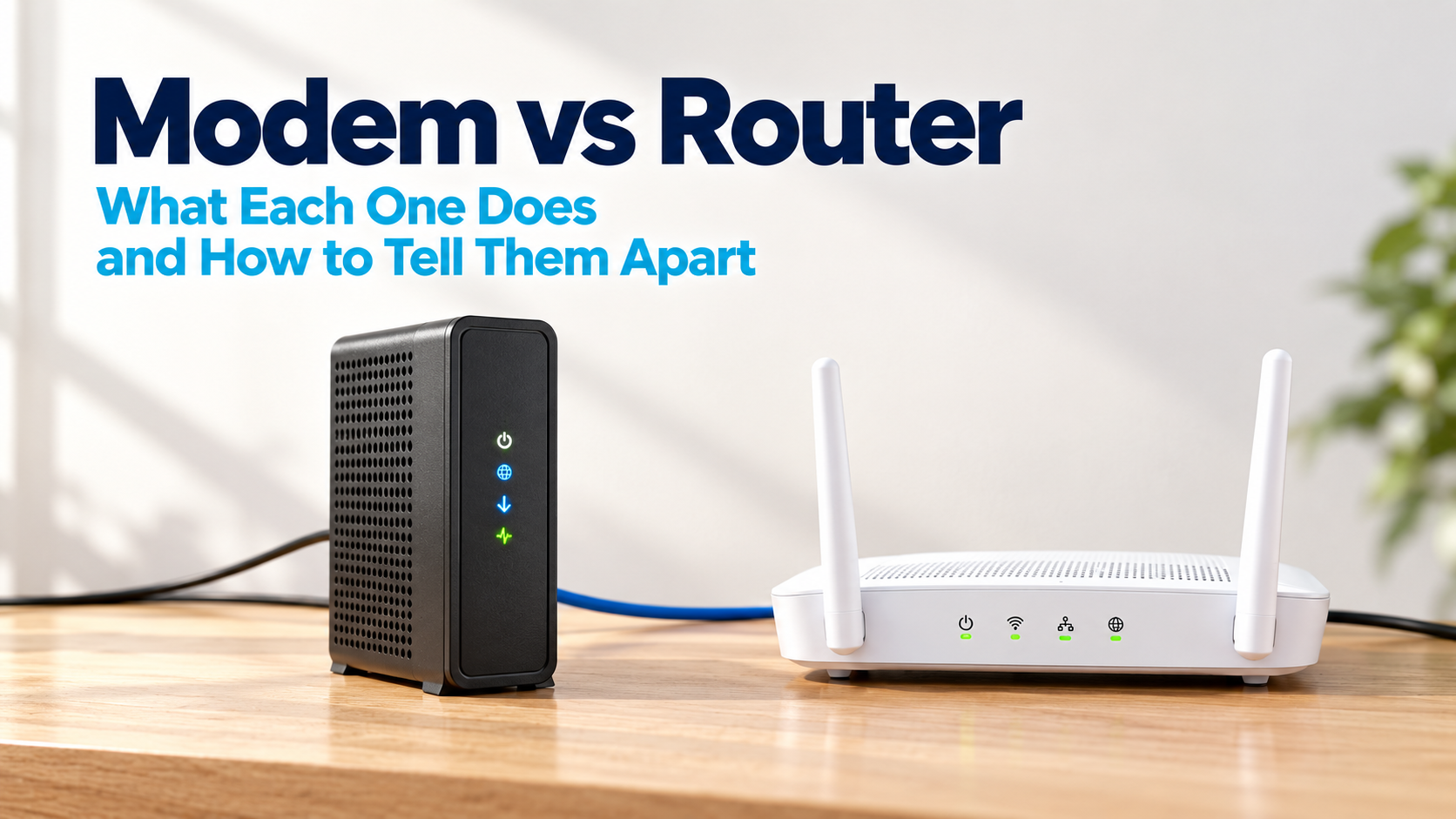
What is the difference between a modem and a router? A modem connects your home to your internet provider's network. A router shares that single connection with your phones, laptops and smart devices over WiFi and Ethernet. You need both jobs done to get online over WiFi, but many providers supply a gateway, one box that does both.
Most guides say “restart your router” when they mean both boxes. If you have ever restarted the wrong one and wondered why nothing changed, this is why.
Your home internet runs on two jobs. One box talks to your internet provider. The other box shares that connection with everything in your home. Sometimes those jobs live in two boxes. Sometimes they live in one.
This guide explains the modem vs router difference in plain terms. You will learn what each one does, how to tell which box is which, and how to spot the one that is failing when your internet drops.
What Is the Difference Between a Modem and a Router?
A modem connects your home to your internet provider. A router takes that one connection and shares it with your devices, over WiFi and Ethernet cables.
AT&T describes it this way: the modem forms a WAN, or wide area network, between your home and the provider’s network. The router forms a LAN, or local area network, so all your devices share one internet connection and can talk to each other (AT&T).
| Modem vs router | Modem | Router |
|---|---|---|
| What it connects to | A modem connects to your internet provider's line: coax, phone line or fiber | A router connects to your devices over WiFi and Ethernet |
| Network it creates | A modem creates the WAN link between your home and the provider | A router creates the LAN, your home network |
| Creates WiFi | A stand-alone modem does not. A gateway does, because it has a router built in | A WiFi router does. Your WiFi name and password belong to the router |
| Typical ports | A modem has one provider input and usually one Ethernet port | A router has one internet (WAN) port and usually several Ethernet (LAN) ports |
| Works without the other | A modem alone can often connect one wired computer, with no WiFi and no router protection | A router alone runs a local network with no internet access |
| Sign it is failing | When a modem fails, every device loses internet and the modem's online or internet light is off or blinking | When a router fails, the WiFi network disappears, or devices connect with no internet while the modem looks normal |

Whether you call it modem vs router or router vs modem, think of it as a chain: internet provider → modem → router → your devices. If any link breaks, everything after it goes offline.
What Does a Modem Do?
A modem brings the internet signal into your home. It translates the signal on your provider’s line into a connection your router or computer can use.
Spectrum puts it simply: a modem is the device that connects to your internet provider and brings the internet signal into your home (Spectrum).
Which Kind of Modem Do You Have?
The type depends on how the internet reaches your home:
- Cable internet. A cable modem connects to the coax cable from the wall. Cable modems use DOCSIS, the cable broadband technology developed by CableLabs.
- DSL internet. A DSL modem connects to your phone line.
- Fiber internet. An ONT (optical network terminal) converts the light signal on the fiber line into an electrical signal. AT&T notes this step for its fiber service (AT&T). A router or gateway then connects to it.
- 5G or fixed wireless home internet. Usually, there is no line from the wall. Instead, the provider’s gateway receives a wireless signal.
What Does a Modem Not Do?
A modem alone usually doesn’t create a WiFi network. Spectrum notes that a modem typically has one Ethernet connection, meaning it supports only one wired device (Spectrum). To connect phones, laptops, TVs, and smart home devices at the same time, you need a router.
What Does a Router Do?
A router shares your internet connection with every device in your home. It creates your WiFi network, gives each device a local address and sends traffic to the right device.
A router does three main jobs:
- Creates your home network. Your WiFi name and password belong to the router, not the modem.
- Directs traffic. It sends a video stream to your TV and an email to your laptop, all over one internet connection.
- Adds a layer of protection. It sits between your devices and the internet, so outside traffic does not reach your devices directly.
What Does a Router Not Do?
A router cannot reach the internet on its own. Without a modem, or a gateway with a built-in modem, a router still runs a local network. Devices can see each other, but nothing can access the internet.
A mesh WiFi system is also a router. It spreads the router’s job across several units to cover a larger home. Most mesh systems still need a modem or gateway to connect to the internet.
Do You Need Both a Modem and a Router?
To get online over WiFi, yes. A router can create a WiFi network on its own, but it needs the modem’s connection to reach the internet. Spectrum puts it this way: “to use WiFi, you will need both a modem and a router” (Spectrum).
That does not always mean two boxes. Here is what you need for common setups:
- Phones, laptops and smart devices online over WiFi. A modem plus a router, or one gateway.
- One desktop computer on a cable, no WiFi. A modem alone can work, but the computer loses the router’s layer of protection. Keep its firewall on, or add a router.
- A local network with no internet, such as a printer and laptops in a workshop. A router alone works.
- More WiFi coverage than one box gives. A modem or gateway, plus a mesh system or your own router.
What Is a Gateway, or Modem Router Combo?
A gateway is one box that does both jobs. It contains a modem and a router, so it connects to your provider and creates your WiFi network.
Many internet providers supply one. AT&T says its Wi-Fi Gateway works as both a modem and a router, and that AT&T provides the gateway with its internet service, including AT&T Fiber (AT&T). Xfinity describes its gateways as all-in-one devices that deliver internet and WiFi (Xfinity).
Is a Gateway Better Than a Separate Modem and Router?
Neither is better for everyone. A gateway is simpler. A separate modem and router give you more control.
| Comparison point | Gateway (modem router combo) | Separate modem and router |
|---|---|---|
| Boxes and power plugs | A gateway is one box with one power plug | A separate setup is two boxes, two power plugs and an Ethernet cable between them |
| Who supports it | A provider gateway is supported by your internet provider | The provider supports its modem. You support a router you bought yourself |
| Upgrading WiFi | With a gateway, you swap the gateway or add your own router or mesh system behind it | With separate boxes, you replace only the router |
| Troubleshooting | A gateway gives you one box to check and restart | Separate boxes give you two to check. When restarting both, the modem goes first |
| Automatic restarts with Keep Connect | A gateway needs one Keep Connect | A separate modem and router use two Keep Connect units in Master/Follower mode |
The NSA’s home network guidance makes a similar point. It says your provider may supply a modem/router, and that for more control over routing and WiFi features you can connect a personally owned router to it (NSA, February 2023).
If you add your own router behind a provider gateway, you now have two routers. Ask your provider how to set up the gateway so your devices don’t end up on two separate networks.
How Can You Tell Which Box Is the Modem and Which Is the Router?
Follow the cable from the wall. The box that the provider’s line plugs into is the modem, or a gateway. The box that creates your WiFi is the router.

Use these four checks:
- Find the cable from the wall. Coax, a phone line or a fiber line plugs into the modem, ONT or gateway.
- Look for the WiFi name and password on the label. That label sits on the router or gateway, not on a stand-alone modem.
- Count the boxes. Two boxes joined by one Ethernet cable usually means a modem plus a router. One box with the wall cable and the WiFi label is a gateway.
- Check the model number. Search the model on the maker’s or provider’s support site. The listing says “modem”, “router” or “gateway”.
Which One Is Causing Your Internet Problem?
When every device is offline, check your provider’s outage page on mobile data first, then the modem. If the modem has lost its connection to your provider, nothing you do to the router will help.
| What you see | Most likely cause | What to check first |
|---|---|---|
| Every device is offline and the modem's internet or online light is off or blinking | The modem, the provider's line or a provider outage | Check your provider's outage page on mobile data, then the cable into the modem |
| Every device is offline but the modem's lights look normal | The router, or the Ethernet cable between the modem and router | Reseat the cable, then restart only the router |
| Your WiFi network name no longer appears on any device | The router, or the WiFi side of a gateway | Check that the router has power, then restart it |
| Devices on Ethernet cables work but WiFi devices do not | The router's WiFi | Restart the router, then check its WiFi settings |
| Only one phone or laptop is offline | That device, since others still connect | Restart the device, then forget and rejoin the WiFi network |
| Internet works after a restart, then drops again within days | Could be either box, the line, heat or aging equipment. Needs testing to confirm | Note when drops happen and which lights change, then contact your provider if its equipment keeps failing |
Which Lights Should You Check?
Modems usually have a light labeled Online, Internet or similar. A router usually has a WiFi light and an Internet or WAN light. What each color and pattern means varies by model, so check your model’s guide.
Which Box Do You Restart First?
When both boxes need a restart, the order matters: modem first, then router. NETGEAR’s power cycle steps follow that order (NETGEAR). For the full steps and wait times, see how to power cycle your modem and router in the right order.
Restart, Power Cycle or Factory Reset?
These words get mixed up. They do very different things to a modem or router.
| Term | What it does to a modem or router | Keeps your settings? |
|---|---|---|
| Restart (reboot) | A software reboot started from the device's app, settings page or restart button. Power stays connected | Yes |
| Power cycle | Physically removes power by unplugging the device or switching off its outlet, waits, then restores it. With two boxes, the modem goes first | Yes |
| Factory reset | Returns the modem or router to factory defaults with the reset button or a menu option | No. Can erase your WiFi name, password and custom settings |
| Provider outage | A fault on the internet provider's network. No restart or reset of your modem or router fixes it | Not affected |
If only one device is offline, the box is probably fine. Our guide to WiFi connected but no internet covers device fixes. If the internet works after a restart but drops again within days, read how to fix a router that keeps disconnecting. If your router is old and failing often, check the signs you need a new router.
How Do Keep Connect and Always Router Fit a Modem and Router Setup?
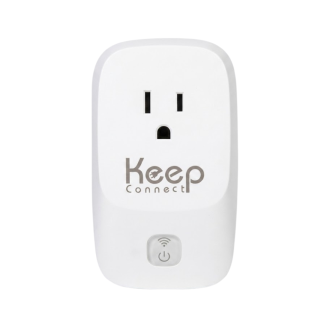
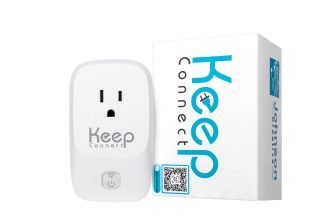
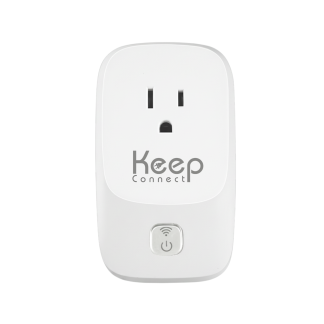
Johnson Creative makes two ways to restart network equipment without you. Keep Connect is a smart plug that power cycles the modem or router you already have. Always Router is a router that restarts itself.
Keep Connect by Johnson Creative plugs into the wall, and your modem, router or gateway plugs into it. It checks connectivity, cuts and restores power when the connection fails, and texts or emails you when you are back online. Setup runs in a web browser over WiFi, and basic automatic rebooting needs no subscription. Keep Connect is rated for a 10A total connected load.

How Do You Set Up Keep Connect for One Box or Two?
If you have a gateway. One box means one Keep Connect. Plug the gateway into it.
If you have a separate modem and router. Johnson Creative’s Master/Follower setup uses two Keep Connect units, one for the modem and one for the router. Both join the same WiFi network. The Master unit watches internet health and signals the Follower to reset at the same time. A Power On Delay setting on the Follower lets the modem come online before the router starts.
KeepLink adds a backup path. With KeepLink, the two units also signal each other directly over their own WiFi. So the modem and router still restart together if your local network has failed.
Modem or router with a backup battery? Cutting power may not restart it, because the battery keeps it running. Check with Johnson Creative before you rely on Keep Connect for battery-backed equipment.
When Does a Self-Healing Router Like Always Router Make Sense?
When you are replacing your router anyway and want it to recover on its own. A self-healing router watches its own internet connection and restarts itself when the connection fails, so nobody has to notice the drop.
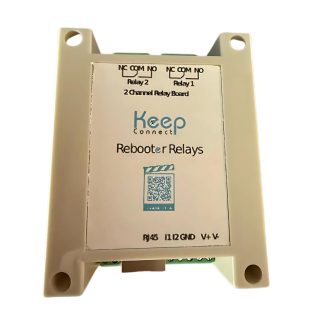
Always Router by Keep Connect runs OpenWrt with Keep Connect firmware. It reboots itself after a confirmed connection loss, a failed speed test, an error threshold or at an interval you set.
- Router-level recovery. It restarts itself, so you don’t need a separate plug for the router.
- Hard power cycle when a restart is not enough. It can trigger a linked Keep Connect plug.
- Free alerts. Connection monitoring and email and SMS alerts are built in, with no subscription.
- Still needs a modem. Always Router is a router, not a modem. Pair it with a modem, or with a linked Keep Connect on the modem for a full recovery chain.
How Do Keep Connect and Always Router Compare?
| Comparison point | Keep Connect | Always Router by Keep Connect |
|---|---|---|
| What it is | Keep Connect is a smart plug that sits between the wall outlet and your modem, router or gateway | Always Router is a WiFi router running OpenWrt with Keep Connect firmware |
| What it restarts | Keep Connect power cycles the equipment plugged into it when the internet connection drops | Always Router reboots itself after a confirmed connection loss, a failed speed test, an error threshold or at a set interval |
| Works with | Keep Connect works with the modem, router or gateway you already have, within a 10A total connected load | Always Router replaces your router. It still needs a modem or provider equipment for internet |
| Separate modem and router | Keep Connect uses two units in Master/Follower mode, with KeepLink | Always Router can trigger a linked Keep Connect plug for a hard power cycle |
| Alerts and subscription | Keep Connect sends text or email alerts. Basic automatic rebooting needs no subscription | Always Router includes free connection monitoring and email and SMS alerts. No subscription needed |
For a wider look at keeping a home network online, read our home WiFi monitoring guide.
What Are the Key Takeaways?
- A modem connects your home to your internet provider. A router shares that connection with your devices.
- You need both jobs done to get online over WiFi. A gateway does both in one box.
- The box your provider’s line plugs into is the modem or gateway. The box with the WiFi name on its label is the router or gateway.
- When every device is offline, check your provider’s outage page first, then the modem.
- When both boxes need a restart, restart the modem first.
- A factory reset can erase your WiFi name and password. A restart does not.
- Keep Connect restarts the modem or router you have. Always Router is a router that restarts itself.
What Are the Most Common Modem vs Router Questions?
Is a modem the same as a router?
No. A modem connects your home to your internet provider. A router shares that connection with your devices and creates your WiFi network. A gateway is the exception, because it puts both in one box.
Does a router need a modem?
A router needs a modem, ONT or gateway to reach the internet. Without one, the router still runs a local network, so devices can see each other, but nothing can get online.
Can I plug my computer straight into the modem?
Sometimes, but it is not the recommended everyday setup. A computer plugged straight into a stand-alone modem has no router between it and the internet, so keep its firewall on and its software updated. Some provider equipment limits how many devices it connects or may need a restart when you change devices. For daily use, put a router between the modem and your devices.
Is my WiFi coming from the modem or the router?
From the router. If you have one box with both the provider's cable and your WiFi name on its label, that box is a gateway, and its built-in router creates the WiFi.
Is a modem router combo better than separate devices?
A combo, or gateway, is simpler: one box, one plug and one support contact. Separate devices give you more control and let you upgrade the router without touching the modem. The NSA suggests a personally owned router behind the provider's device if you want more control over routing and WiFi features.
Does a mesh WiFi system replace my modem?
Usually not. A mesh system is a router spread across several units. Most mesh systems still connect to a modem or gateway to get online.
Do I need to restart both the modem and the router?
Only when every device is offline or you are not sure which box failed. Restart the modem first, then the router. If the modem's lights look normal, restarting only the router is often enough. See how to power cycle a modem and router for the full steps.
What is the difference between Keep Connect and Always Router?
Keep Connect is a smart plug that power cycles the modem, router or gateway you already have when the internet drops. Always Router is an OpenWrt router that reboots itself after a confirmed connection loss or a failed speed test, and it can trigger a linked Keep Connect plug when a restart is not enough. Always Router still needs a modem.
What Is the Bottom Line on Modems and Routers?
The modem brings the internet in. The router shares it. If you are restarting either one every week, Keep Connect or Always Router can handle it when the connection drops.
About the Author
Rona writes guides for Johnson Creative on router rebooting, internet reliability and home monitoring. Product details come from Johnson Creative's manuals and support articles.