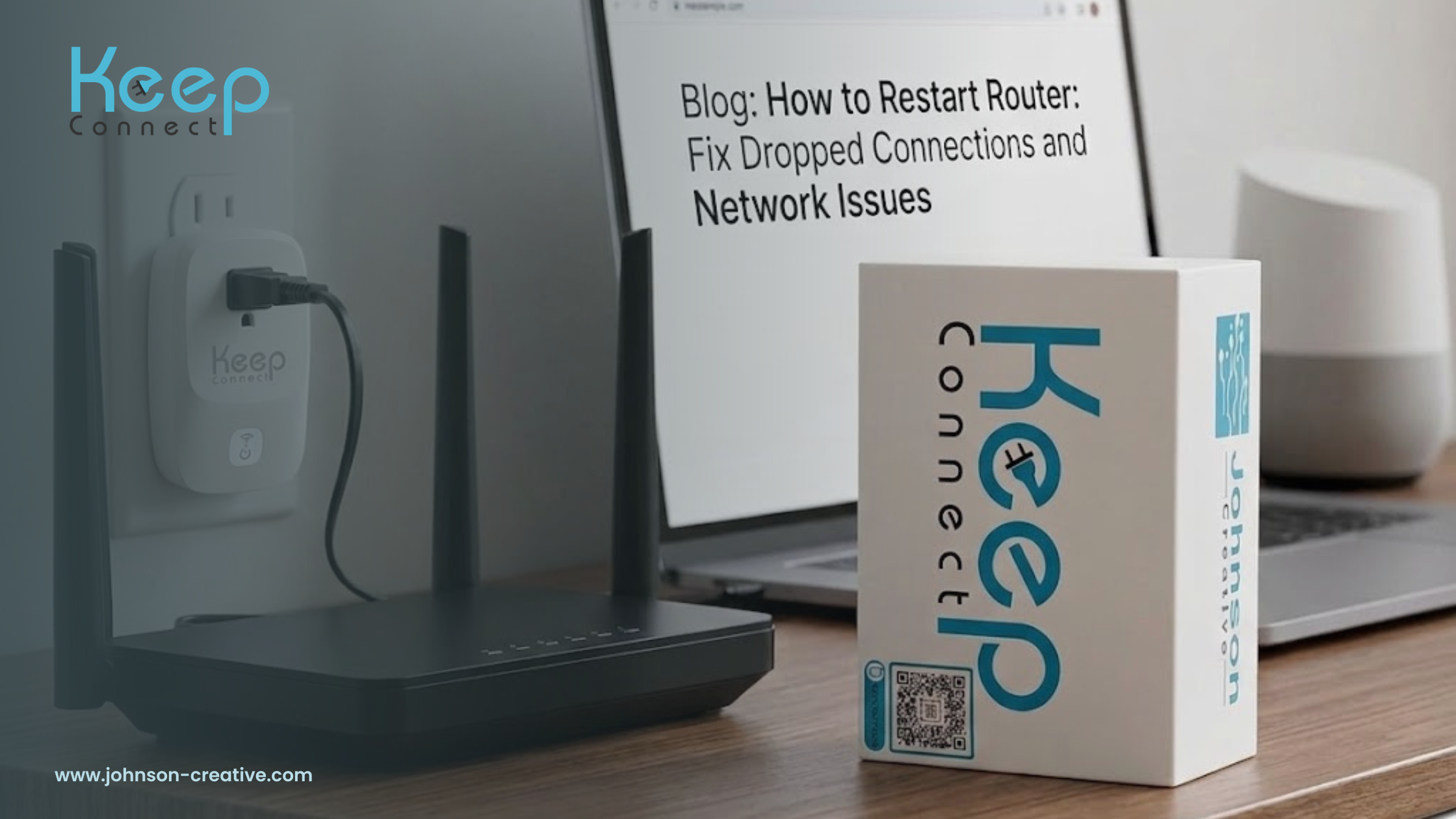
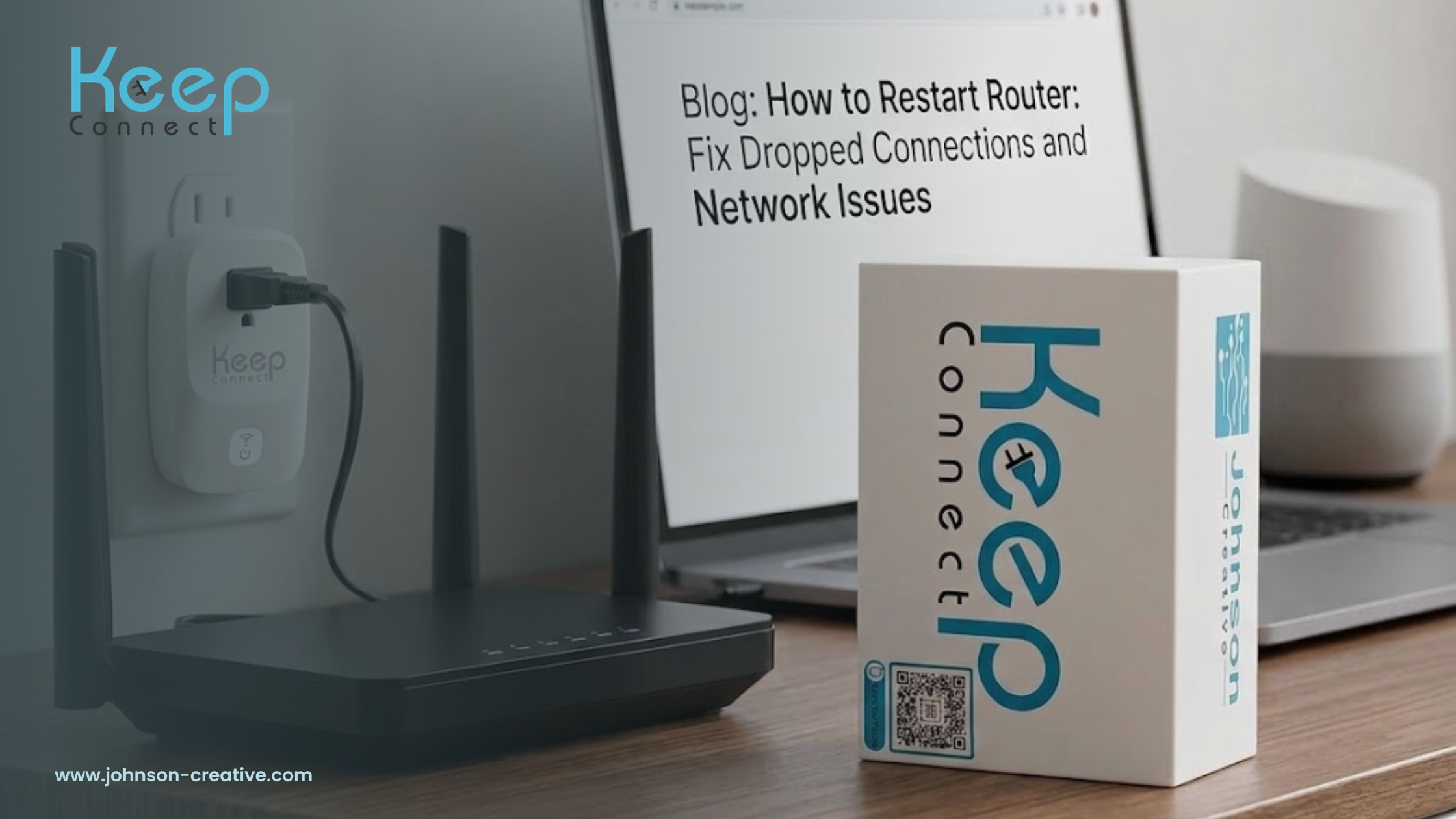
Usually, when your internet slows down or freezes or randomly disconnects, restarting your router is one of the first fixes people try.
The problem is, most people restart their router incorrectly. They unplug it too fast, plug it back in too soon, restart only one device, or go through the same manual routine again and again without solving the real problem. If you’re experiencing frequent WiFi drops, understanding how to reboot your router correctly can help bring back your connection, cut down on downtime, and eliminate unwarranted frustration.
In this guide, we’ll show you how to correctly restart your router, when to reboot your modem too, why your internet keeps dropping, and how an automatic router rebooter such as Keep Connect can do the job for you.
First answer:
To properly reboot your router, unplug it from power and wait 30 seconds, then plug it back in and wait a few minutes for it to reconnect. If you have a separate modem and router, restart the modem first, then the router. If your internet drops repeatedly, an automatic router rebooter can monitor the connection and reboot the gear.
Why does restarting your router work
Your router is always routing traffic between your devices and the internet. It’s used by phones, laptops, smart TVs, security cameras, smart speakers, thermostats and other connected devices to stay connected.
Temporary issues such as memory buildup, dropped connections, IP conflicts, overheating, firmware glitches, or communication problems between your router and modem or internet service provider can build up over time.
A router restart gives it a fresh start. It restores temporary connection problems, resets network communication and allows connected devices to reconnect properly.
That’s why many internet service providers suggest rebooting your router as a first troubleshooting step. It won’t fix every internet problem, but it’s often enough to get a dropped or wonky connection back up and running.
Restart, Reboot, Reset: What’s the Difference?
Before we go any deeper there is one common confusion to clear up.
A lot of people use the words restart, reboot, and reset interchangeably. But they don’t always mean the same thing.
Restarting/Rebooting Your Router
Restarting or rebooting usually means turning the router off and then on again.
This is done by:
- Disconnecting the router from power
- A bit of waiting
- Putting it back in.
- Letting it back in
- This won’t erase your WiFi name, password or router settings. It just reloads the device.
Router Reset (October 2023)
Rebooting a router is something else.
A reset usually means a return to factory settings on the router. This might delete your WiFi name, password, security settings, port forwarding rules, and custom configuration.
Usually this is done by holding down the physical reset button on the router.
You do not want to reset your router for most internet issues. You just want to reset it or reboot it.
How To Properly Reboot Your Router
This is the most secure basic way.
Step 1: Locate Your Router and Modem
In some homes and offices, one device functions as both the modem and the router. Others have two separate units.
The modem links your location to your Internet Service Provider.
The router sends that internet to your devices via WiFi or ethernet.
If you have two separate devices, the modem usually connects to the cable, fiber or phone line from your ISP. Generally connected to the modem, the router transmits the WiFi network.
2. Unplug the Router From Power
Don’t push random buttons unless you know what they do!
Unplug the router’s power cable. You can unplug it from the wall outlet or from the back of the appliance.
Don’t push the factory reset button.
Step 3: Wait 30 Seconds Or More Now
This waiting period is meaningful.
If you plug the router back in too soon it may not power down completely. Waiting at least 30 seconds allows the device to clear temporary memory and shut down properly.
For some setups even better is to wait 60 sec.
Step 4: Power on the Router
Reconnect mains cable and wait.
Most routers will take a few minutes to reboot fully. In this time lights may blink, change colors or come on in stages.
Try not to keep plugging it out and back in while it is booting.
Step 5: Wait for devices to reconnect themselves
When the router is powered back up, your phone, computer, cameras, smart devices and other equipment that was connected should begin to reconnect.
This can take a few minutes, especially if you have a lot of smart home devices.
How to Reset Both Modem and Router at the Same Time
If you have a separate modem and router, the order matters.
Use this order:
- First unplug the router
- Second unplug the modem
- Hold for 30-60 secs
- First, re-plug the modem.
- Wait until the modem has fully booted up
- Reconnect the router
- Wait for WIFI to come back
This works because your modem has to first re-establish connection to the internet service provider. When the modem is online, your router can take the connection and share it with your devices.
If you plug the router in too early it may try to connect before the modem is ready.
When Should You Reboot Your Router?
Restarting your router can help with:
- Your Wifi is connected but you have no internet
- Websites are loading slow
- Streaming keeps buffering up
- Smart devices suddenly go dark
- Security cameras stop working
- Your router is feeling flaky
- You blacked out on me recently
- Your Internet goes down and does not come back on its own.
- Your ISP connection comes back online but your router doesn’t reconnect properly
A manual restart may be all that is needed for a one-off problem.
But if it happens regularly, manually rebooting your router becomes a pain. That’s particularly true if the router is in a remote location, vacation rental, office, or property you don’t visit every day.
Why does my router keep disconnecting
There are several reasons for a router to drop connection. Some are caused by the router itself, some by the modem, the Internet service provider (ISP), power interruptions, or local network conditions.
Termporary Router Problems
Routers are little computers. Like any computer, they can freeze, slow down or encounter temporary software issues.
A reboot can solve any number of these transient issues.
Signal Problems and ISP Outages
Occasionally, the problem is not your router. Your Internet Service Provider may be experiencing an outage, maintenance window, weak signal, or a temporary line problem.
In this case, restarting your router once the ISP connection is restored may help, but it won’t fix the actual outage.
Modem Problems and Solutions
If you lose connection or your ISP has not renewed communication, the router can seem to be the problem when it is not.
This is why some setups require the modem and router to be restarted in the proper order.
Too Many Devices Connected
Modern houses and offices have dozens of connected gadgets.
All of these devices—smart TVs, laptops, phones, tablets, cameras, printers, speakers, sensors and smart plugs—can place a load on the network. The router can struggle if it’s a little more dated or underpowered.
Power Outages
A quick power flicker can confuse network gear. Sometimes the modem comes back up and the router doesn’t reconnect properly.
This is common in areas with weak power or properties that have frequent outages.
Over heating
Routers located in cabinets, closets, enclosed shelves or warm areas may overheat. Heat can cause unstable performance, slower speeds and random disconnects.
Firmware or configuration problems
Poor settings, outdated firmware or bugs in the router can also cause connection instability.
You may get some temporary relief by restarting, but if the problem continues you may need to do some deeper troubleshooting.
The Issue With Manual Router Restarting
If you’re home then it is easy to manually restart your router. But when you are not near the router, it becomes a problem.
For instance:
- An Airbnb guest messages you that the wifi is out
- When you are away a security camera drops out.
- A remote office that loses internet after hours
- A smart thermostat or lock isn’t responding
- POS system disconnects
- A family member has to crawl behind furniture to unplug the router.
- You have to walk someone through rebooting over the phone.
This is where manual restarting becomes a pain.
Even if rebooting fixes the problem, someone has to notice the outage, physically go to the router, unplug it, wait, plug it back in, and verify it came back online.
That’s not good for homes, rentals, businesses or off-the-grid locations that require reliable internet.
What Is Keep Connect Router Rebooter?
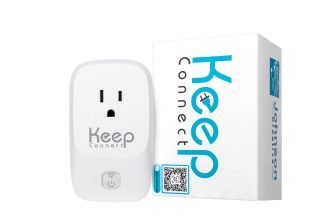
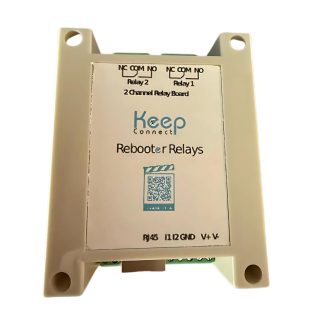
Keep Connect Router Rebooter is a smart device that will automatically reboot your router or modem when the internet goes down.
Keep Connect continuously monitors the internet connection so you don’t have to wait for someone to physically unplug the router. If it detects that the connection is down, it can power cycle the connected network device to help restore the Internet.
It just does the manual unplug-then-plug-back-in thing for you.
Especially useful for locations where uptime is important but you may not always have a person around to reboot the router.
How Keep Connect Helps Stop Internet Outages
Keep Connect is based on a real world problem:
Most routers can be rebooted and come back but there has to be somebody there to do it.
“Keep Connect helps automate that process.”
Keep Connect checks the Internet connection when it is lost. If the connection does not come back up, it can cut power to the connected router or modem, wait and restore power. It causes the equipment to restart . It is like pulling the plug out of the equipment .
That means the connection might come back without you having to visit the property or ask someone else to restart the router.
Manual Restart vs. Keep Connect Automatic Restart
The difference here is just a comparison.
Situation: Manual Router Restart vs Keep Connect
- Router drops while you are home: You unplug it and plug it back in yourself. Keep Connect can reboot the device automaticall
- Router drops while you are away. You need to have physical access to it. Router rebooter can take the reboot without you being there
- Airbnb guest WiFi: Lost Guest or host needs to troubleshoot Keep Connect can restore the connection automatically
- Security cameras cut out You might not learn until later.Alerts and monitoring can help keep you informed
- Repeated drops You keep doing the same routine. The reboot process is automated in Keep Connect devices.
- Remote location Hard to fix fast. Keep Connect is meant for remote monitoring and recovery
Top Use Cases of Keep Connect
Keep Connect is a wonderful tool for any location where you need internet access, but it’s especially useful for locations where you can’t easily restart the router yourself.
Homes.
Back at home, Keep Connect can reduce the aggravation of walking over to the router when the internet goes down.
It’s great for families, smart homes, working from home, gaming, streaming, and home security systems.
Airbnb and Vacation Rentals
WiFi issues can quickly turn into guest complaints for vacation rentals.
The guests might not know how to reboot the router properly. They might unplug the wrong thing, hit the reset button, or send the host a message at 3am.
Keep Connect offers hosts a better way to keep the connection going without relying on guests to troubleshoot.
Remote Properties
Internet-connected cameras, locks, thermostats, sensors and monitoring devices are commonly used to remotely control cabins, lake houses, vacation homes, storage facilities and other properties.
If the router goes down, those devices could become unreachable.
Keep Connect can help reconnect without the need to visit the property.
Small Businesses
For small businesses, internet downtime can impact payments, phones, customer service, security systems, and employee productivity.
An automatic router rebooter can help to minimize downtime due to common connection issues.
Security Cameras & Smart Gadgets
Security cameras, smart locks, thermostats and other connected devices only work when the internet works.
If the router freezes, the entire system may appear to be offline.
Keep Connect helps by restarting the network equipment if needed.
Is It Worth Rebooting Your Router Daily?
Restarting your router from time to time is normal. Some people periodically reboot just to keep the network fresh.
But if you’re having to restart your router every single day just to get the internet working, there could be something more serious going on.
Some possible causes are:
- ISP signal weak
- Modem failure
- Old router
- Over heat
- Too many connected devices.
- Firmware problems
- Instability of power
- Local wiring difficulties
Keep Connect can help reduce downtime by automatically rebooting the equipment but should not be considered as a replacement for fixing serious ISP or hardware problems.
Here’s one way to think about it:
Keep Connect is there to recover the connection when a reboot is the answer. If the internet issue is a total ISP outage, bad cable, dead modem or dead router, then those problems still need to be fixed separately.
Does Rebooting the Router Help Speed up Internet?
Yeah. Sometimes.
Sometimes, the router may be overloaded, frozen, overheated or have temporary software issues. Restarting the router may help to speed up the connection.
When you reboot the router , it has refreshed its connection and cleared temporary problems . This might improve its performance .
But resetting your router won’t magically make your internet plan faster. If you buy 100 Mbps, a restart will not turn it into 500 Mbps.
This may help restore normal performance in case the router is not working properly.
Should You Power Cycle the Router or the Modem First?
If you only have a router then reboot the router.
If you have a separate modem and router, restart the modem first to bring the system back online.
The full sequence we recommend is:
- Switch your router off.
- Turn off the router
- 30-60 seconds rest
- Turn on the modem.
- Wait for it to reconnect fully
- Switch on the router
- Wait for WiFi to come back
This allows the modem to reconnect to the ISP before the router tries to distribute the internet connection.
What Not to Do When Restarting Your Router
- Steer clear of these common mistakes.
- Don’t Push the Reset Button Unless You Mean It
- The reset button might erase your router settings and reset it to factory defaults.
- If you just want to refresh the connection, remove the power instead.
- Don’t Plug It Back In Too Soon
- A quick on and off may not clear the issue completely.
- Wait at least 30 seconds before reconnecting power.
- Don’t Restart Again and Again
- If the router is still booting, wait.
- “Unplugging it repeatedly might complicate troubleshooting.
- Don’t forget about frequent drops.
If your internet keeps going down, don’t think that rebooting is always the long-term solution.
Verify the type of problem and determine whether the problem is with the router, modem, ISP, power or the connected devices.
Why Keep Connect is Better Than a Smart Plug
Some people use a smart plug to reboot a router remotely. That can work in some cases, but it has a major weakness.
Most WiFi smart plugs need an internet connection for receiving commands.
If the router is down, your smart plug may be down too.
That means you may not be able to initiate the reboot when you need it most.
Keep Connect is designed for rebooting router and modem. It monitors the health of the internet and can automatically power cycle the connected equipment when the connection drops out.
So it’s more useful than a dumb smart plug for internet recovery.
When Keep Connect May Not Help
Setting the right expectations is important.
Use Keep Connect if the issue can be fixed by power cycling the router or modem.
But it’s not a cure-all for the internet.
For example, it cannot fix:
- A complete ISP outage
- One cut cable
- A dead modem.
- A broken router
- A billing issue with an ISP
- Poor cellular or satellite signal outside the router.
- Misconfiguration of router
- A device-specific WiFi issue
If the ISP is down and the internet is down, Keep Connect can reboot the equipment but the internet will not come back until the ISP connection is restored.
However, in many practical situations a power cycle is just what is needed to bring the network back up.
Adding Keep Connect to a Reliable Internet Setup
A good internet set up is about more than just a fast plan. It’s about cutting down on the things that can disconnect you.
- A good set-up may include:
- A good modem.
- A great router
- Placement of Routers
- Update firmware.
- Battery backup or surge protection
- A reliable ISP connection
- An automatic router rebooter like Keep Connect
- Keep Connect provides a level of protection by fixing one of the most common fixes automatically, which is to restart the network equipment when the connection drops.
Who Can Benefit from Keep Connect?
Keep Connect is great for people who:
- Requires internet to recover not physically there
- Manage vacation rental or airbnb properties
- Set up security cameras or smart locks
- Want less interruptions when working from home
- Have remote offices or small business sites
- Assist family members who struggle with router troubleshooting
- Have internet equipment that needs to be rebooted from time to time
- Interested in alerts and remote monitoring
- This is especially true when the cost of an Internet outage is greater than the cost of preventing it.
Conclusion
Rebooting your router can fix many common internet problems. The trick is to shut it down properly, wait long enough, and then power up your modem and router in the correct order if you have both devices.
But if your internet goes down at the wrong moment when you’re away, or if you run a property where someone else relies on the connection, manual rebooting isn’t always enough.
That’s where Keep Connect Router Rebooter comes to the rescue.
Rather than waiting for someone to pull the plug on the router, Keep Connect takes the headache out of it by monitoring the internet connection and automatically restarting the connected equipment when needed. It helps reduce downtime, prevent unnecessary service calls and keep homes, rentals, offices and smart devices connected.
If you get tired of manually restarting your router, Keep Connect can do it for you automatically 24×7.
Frequently Asked Questions (FAQ)
How do I properly reboot my router?
Unplug the router from power, wait at least 30 seconds, and plug it back in. Give the router a few minutes to fully reboot and reconnect your devices.
Should I reset my router or my modem first?
If you have separate modem and router units, disconnect both, then reconnect the modem first. Wait for the modem to reconnect and then plug the router back in.
Is rebooting the router same as resetting it?
Nope. To restart, power off router, then power on. Reset usually means re-setting to factory settings. This could wipe out your wifi name, password and custom settings.
How often should I reboot my router?
Sometimes you have to reboot it. That is normal. But if you have to restart your router every day, then there may be a bigger problem with your router, modem, ISP connection or power.
Does Keep Connect automatically reboot my router?
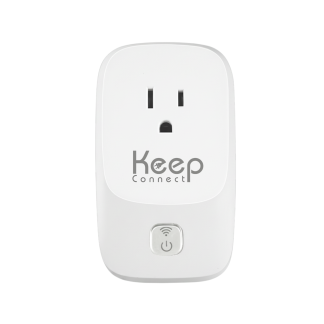
Yes. Keep Connect Router Rebooter is a smart plug that monitors your Internet connection and automatically power-cycles the connected router or modem when the connection drops.
Does Keep Connect work for Airbnb listings?
Yes. Keep Connect is a great solution for Airbnb and vacation rental properties, as it can restore internet access without the host or guest having to manually reboot the router.
Is a smart plug capable of doing what Keep Connect does?
Simple smart plugs can turn power on and off, but usually they need WiFi to receive command. You may not be able to access the smart plug if the router is not online. Keep Connect is designed to monitor internet health and reboot network equipment automatically.
Can I improve my slow internet by resetting the router?
It may be helpful if the router is experiencing a temporary problem, frozen, or overloaded. But that won’t speed up your internet plan, or fix a big ISP problem.
Can Keep Connect resolve an ISP outage?
Nothing a device can do to fix an actual ISP outage. Keep Connect will reboot your router or modem. If your internet provider is down, your connection will be restored when ISP service is restored.
Keep Connect is perfect for:
Keep Connect is perfect for homes, small businesses, remote properties, Airbnb rentals, vacation homes, smart homes, and anyone who wants their router or modem to automatically reboot when the internet goes down.