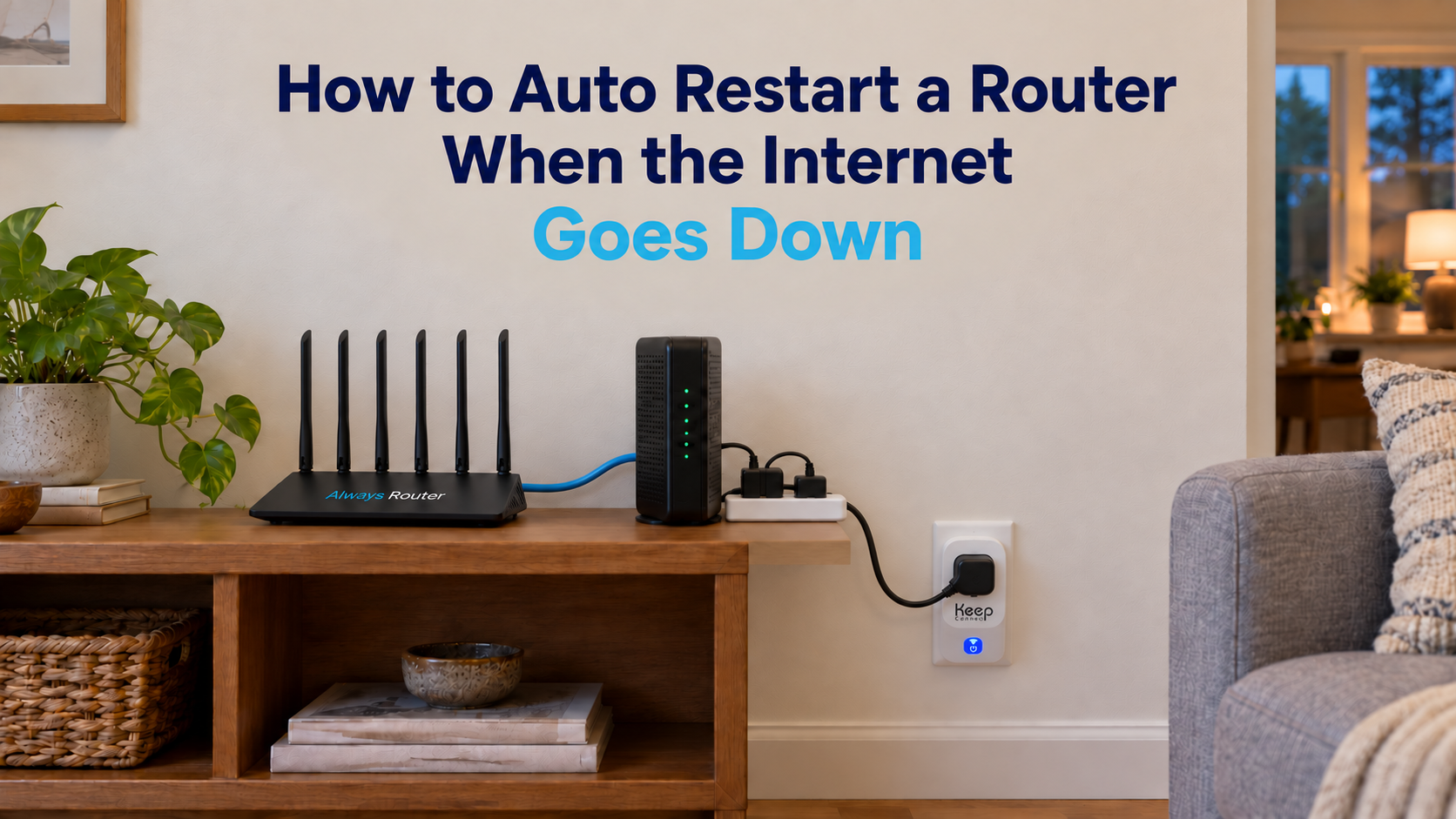
How do you auto reboot a router when the internet goes down? Use a router with a connection watchdog feature, or plug your router into a rebooter that monitors the internet and power cycles the equipment when its checks fail. A scheduled restart can handle predictable slowdowns, but it cannot tell whether the connection has actually failed. No automatic restart can repair failed hardware, a damaged cable or an internet provider outage.
When your WiFi drops, restarting the router may clear a temporary equipment problem. Doing that manually becomes inconvenient when failures repeat or when no one is near the equipment.
This guide explains how to auto restart a router when the internet goes down, in five steps. You can restart on a schedule or after a connection check indicates a failure. Not every method can detect an outage, and no restart can fix a problem on your internet provider’s side.
Table of Contents
Why Routers Need a Restart
Restarting a router reloads its software and may clear a temporary freeze or resource problem. A scheduled restart can be useful when a particular router develops predictable problems. A connection-aware rebooter acts only after its configured checks detect a failure.
Frequent restarts are not a substitute for repairing failed hardware, updating firmware, improving WiFi coverage or contacting your internet provider.
Some routers include a scheduled restart or a connection watchdog setting, but availability and menu names vary by manufacturer and firmware version.
Step 1: Confirm That a Restart Actually Helps
Before you automate anything, make sure a restart is what fixes your problem. When the internet drops, check:
- Is it a provider outage? Check your provider’s outage page or app. A restart will not help.
- Is it weak WiFi in one room? If devices near the router work, the issue is coverage.
- Is a cable loose or damaged? Check the cable between the modem and the router.
- Is the equipment failing? A router that needs a restart every day may be wearing out.
- Is your account active? A billing or service problem can look like an outage.
If unplugging the router and modem brings the internet back, an automatic restart is worth setting up. Our guide on how to power cycle your router and modem shows the correct manual method.
Step 2: Check Your Router's Built-In Settings
Open your router’s app or admin page and look for a reboot schedule or a connection watchdog setting. Menu names differ by brand.
ASUS, for example, puts its schedule under Settings > System settings > Schedule Reboot in the ASUS Router app, according to ASUS support. Check your router maker’s support pages for your model.
A schedule is useful for a router that slows down over days or weeks. It cannot tell whether the internet has actually failed, so the connection can stay down until the next scheduled time.
Step 3: Choose an Automatic Reboot Method
Each method works differently when the internet goes down.
| Method | Detects an outage? | Works while the internet is down? | Best use |
|---|---|---|---|
| Router’s scheduled reboot | No | Usually. The schedule runs on the router | Predictable slowdowns |
| Basic smart plug | Usually no | Only with a schedule stored on the plug | Routers with no built-in schedule |
| Connection-monitoring rebooter | Yes, using its configured checks | Yes. It acts on its own | Frozen equipment in a home you are away from |
| Self-monitoring router | Yes | Yes, depending on the model | Replacing your current router |
A note on smart plugs. A basic WiFi smart plug controlled from a cloud app is not the same as a rebooter that monitors the internet. If the router is offline, the plug may lose the connection it needs to receive your command. A smart plug only helps on its own if it has one of these:
- A schedule stored on the plug itself
- Local automation that does not depend on the failed internet connection
- Its own connection monitoring
- Reliable power-on behavior after an interruption, so the router comes back on
Before using a smart plug, confirm that its schedule runs locally and that it will restore power without needing an active internet connection. A cloud-only off command can leave the router, and therefore the plug itself, offline.
Step 4: Set Up and Test Safely
Test your setup before you rely on it while you are away. Work through these checks in order:
- Confirm power and electrical compatibility. Check the plug type and make sure the device’s power rating covers the equipment you plug into it. Equipment with a working internal battery may keep running when external power is removed, so a power cycle may not restart it.
- Confirm the setting is on. Make sure the monitoring or scheduled restart setting is enabled.
- Simulate the failure. Use the failure condition your device’s instructions describe. For a connection-monitoring rebooter, this usually means disconnecting the internet cable from the router while it stays powered on.
- Watch the power cycle. Verify that power to the equipment is cut and then restored.
- Confirm the connection returns. Check that the internet comes back and that any notifications you set up arrive.
Step 5: Watch for Recurring Failures
An automatic restart can hide a growing problem, so keep an eye on how often it happens.
- Check the logs first. If your device keeps a restart history, review it before you change any timing or thresholds.
- Investigate repeat failures. If the router needs a restart every day, or restarts stop helping, check the router, the cabling and your internet provider. The equipment may need repair or replacement.
Our guide for a router that keeps disconnecting walks through the causes.
What Automatic Rebooting Cannot Fix
Where Keep Connect Fits
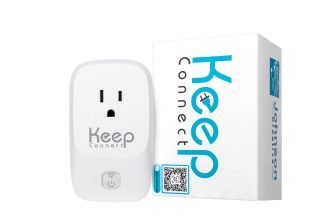
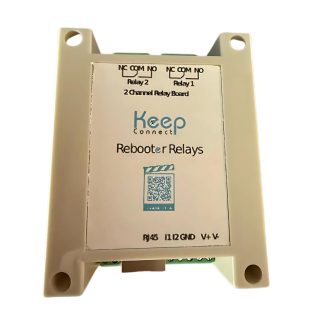
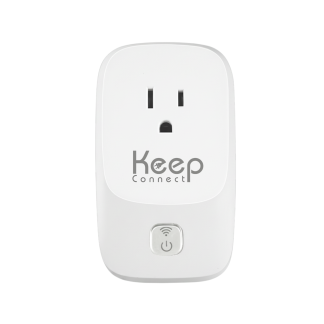
The Keep Connect automatic router rebooter plugs in between your router or modem and the outlet. Keep Connect monitors internet connectivity and can power cycle compatible connected equipment when its configured failure conditions are met. According to the Keep Connect manual, it checks the connection every 5 minutes by default and runs a backup check before it acts. When the failure conditions are met, it cuts power to the connected equipment for 30 seconds, then waits for the router to start up. In the manual’s own outage test, detection takes about 5 to 10 minutes with the default settings.
If the internet is still down, Keep Connect repeats the cycle up to 3 times by default, then pauses for 4 hours before trying again, so it does not keep rebooting during a long provider outage. You can change all of these timings in its advanced settings. It can also run a scheduled preventive reboot every set number of days.
Setup does not require a mobile app, and it monitors and reboots without a subscription. Configured text or email notifications are sent after connectivity is restored. Keep Connect connects over 2.4 GHz WiFi and supports WPA and WPA2-Personal networks. It is not compatible with WPA3-only or WPA2-Enterprise networks. For setup steps, see the Keep Connect installation and operation guide.
If you would rather have the restart built into the router, Always Router runs speed tests and heartbeat checks and reboots itself after a confirmed connection loss, a failed speed test, an error threshold or at an interval you set.
Neither device can fix an outage on your provider’s side, a damaged cable or failed hardware.
Frequently Asked Questions
Is it safe to reboot your router every day?
Rebooting is generally safe, but a daily restart should not be necessary for a healthy router. If problems come back after every reboot, check the firmware, heat, cabling and your internet provider, and consider whether the equipment is starting to fail. See how often you should reboot your router.
Do all routers have a scheduled reboot setting?
No. It depends on the brand, model and firmware version. ASUS, for example, offers a scheduled reboot option in its router app and web admin page. Check your router maker's support pages for your model.
Does an automatic router rebooter need a subscription?
It depends on the product. Keep Connect monitors your connection and reboots your equipment without a subscription. Its optional Cloud Services are needed only for remote monitoring and control features.
Can I reboot my router remotely while I am away?
Yes, if your internet provider's app or your router maker's app supports it and the router is still online. If the internet is down, the app usually cannot reach it. Our guide on how to restart a router remotely covers each option.